Import brands from CSV
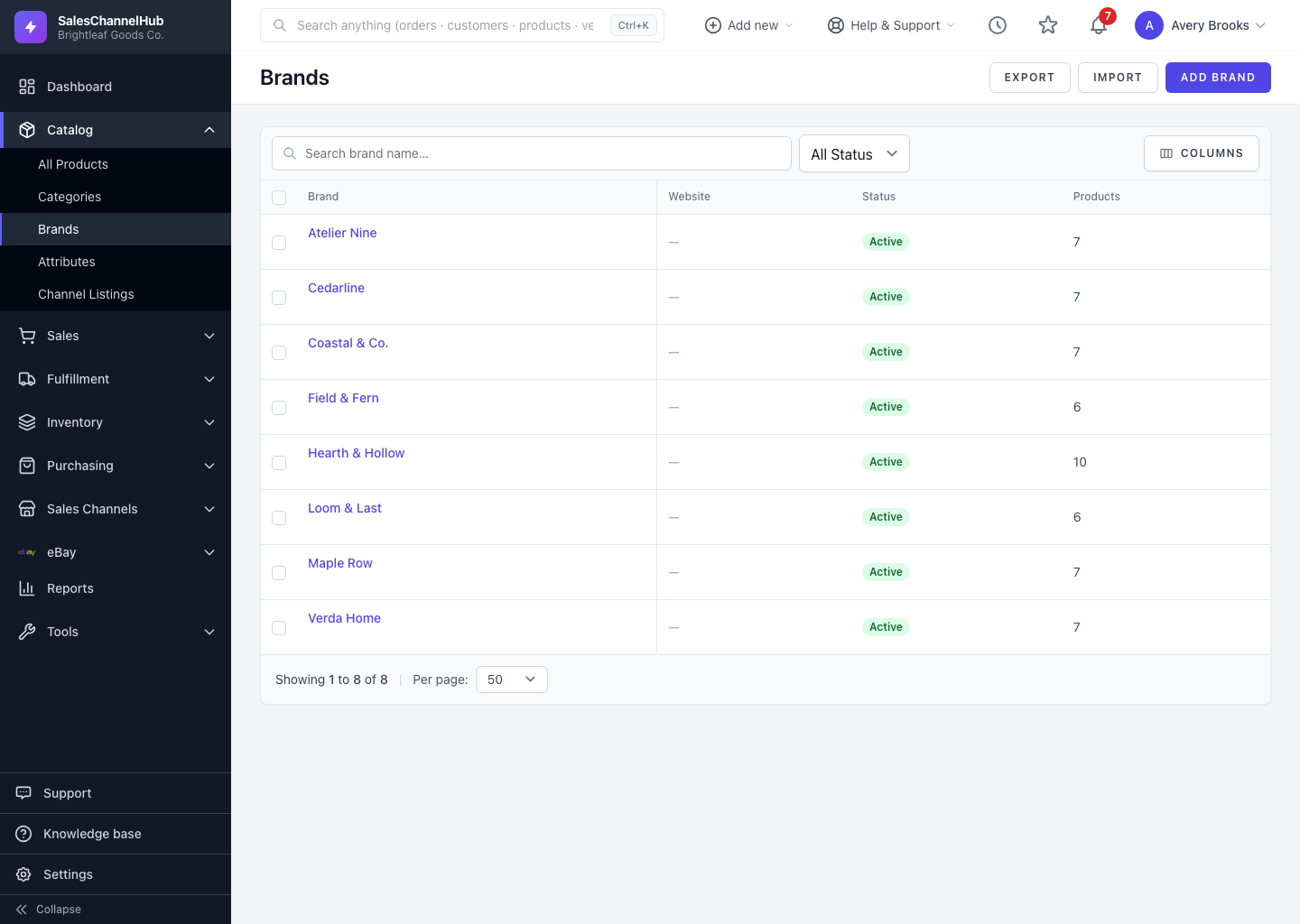
Click Import on the Brands list to bulk-create or update brands from a spreadsheet, matched by brand name.
To add or update many brands at once, click Import on the Brands list and upload a CSV instead of creating them one by one.
How do I import brands?
- Click Import on the Brands list.
- Click Download a blank CSV template to see the columns: Name (required), plus Slug, Description, Website and Active.
- Fill in your rows and save the file as UTF-8 CSV with headers in the first row.
- Choose the file (max 10 MB), decide whether to Update existing brands and Skip rows with errors, then click Import Brands.
- Read the summary. It reports how many brands were created, updated or skipped.
Tip. Existing brands are matched by Name. To update a brand rather than create a duplicate, keep its name identical to what's already in the system.
Common questions
How are existing brands matched on import?
By Name. With Update existing brands ticked, a row whose name matches an existing brand updates it; a new name creates a new brand.
What format does the file need to be?
A UTF-8 CSV, up to 10 MB, with the column headers in the first row. Download the blank template to get the exact headers.
Was this article helpful?