Test a carrier connection
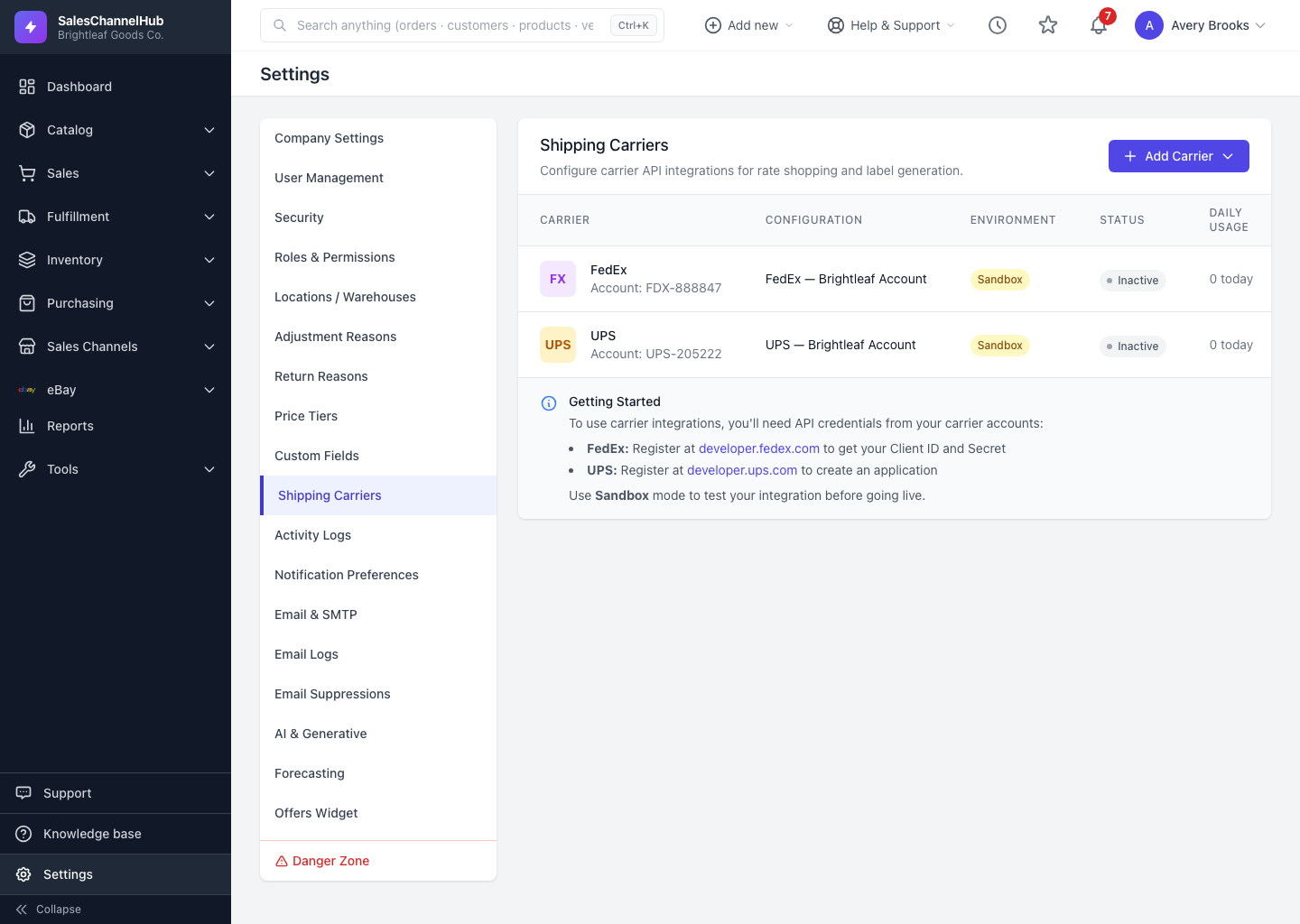
Click the Test Connection icon on a carrier row in Settings → Shipping Carriers to confirm its credentials work.
After adding a carrier, test the connection so you catch credential problems now rather than mid-print-run. The test calls the carrier with your saved credentials and reports back.
How do I test a carrier?
- Go to Settings → Shipping Carriers.
- Find the carrier in the list and click the Test Connection (check-circle) icon in its Actions column.
- Read the result message. Success confirms the credentials and environment are good.
What else does the row show?
Each row shows the Environment (Sandbox or Production), a Status (Active or Inactive) and Daily Usage, so you can keep an eye on call volume.
Tip. If a test fails, re-check the Client ID, Client Secret and account number against the carrier portal. A single stray space is enough to break the connection.
Common questions
My connection test fails. What do I check?
Re-check the Client ID, Client Secret and account number against the carrier's portal, since a stray space breaks them. Confirm the Environment matches the credentials you entered.
It works in Sandbox but not Production. Why?
Production usually needs separate, carrier-approved credentials. Get your production keys from the carrier, enter them, and switch off Sandbox Mode.