Bulk update or delete customers
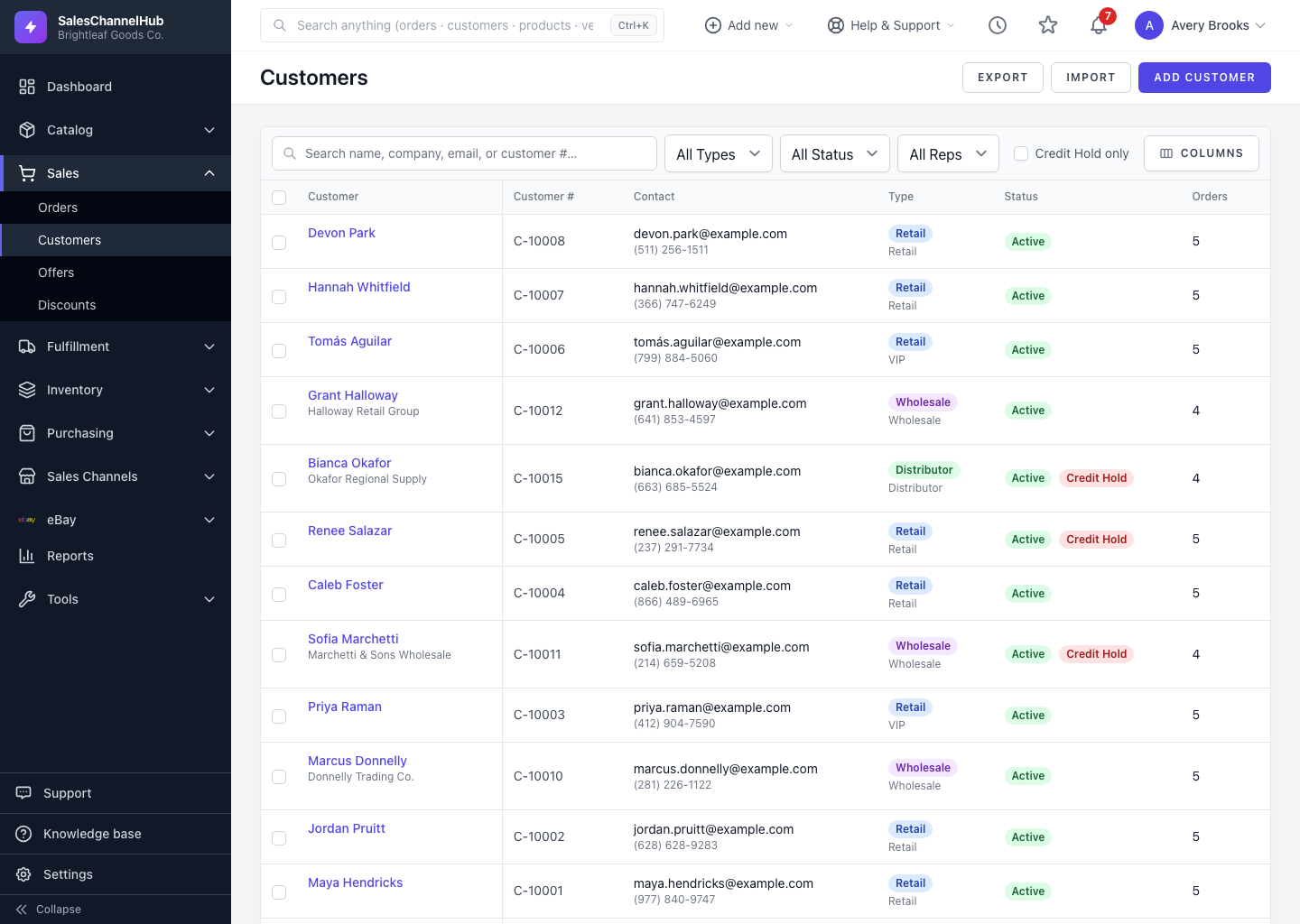
Tick customers in the list to reveal the bulk bar, then Activate, Deactivate, toggle a credit hold, or Delete them in one go.
To change many customers at once, select them in the list and apply a bulk action instead of editing one record at a time.
How do I run a bulk action?
- Open the customer list and tick the checkbox on each customer you want. A bulk-actions bar appears.
- Choose an action: Activate, Deactivate, Credit Hold On, Credit Hold Off or Delete.
- Confirm the prompt, which shows how many customers are affected.
Why didn't every selected customer delete?
Delete skips any customer that already has orders, to protect your records, and tells you how many were skipped. The other actions apply to everyone selected.
Which buttons can I see?
Only the ones your role allows. Activate and Deactivate need edit permission, the credit-hold actions need credit-management permission, and Delete needs delete permission.
Tip. If a customer can't be deleted because they have orders, deactivate them instead. That stops new orders while keeping their history.
Was this article helpful?