Remove image backgrounds with the Background Remover
Upload product photos, pick an output, and the tool turns them into clean cutouts; processing starts automatically.
The Background Remover turns product photos into clean cutouts: transparent PNGs or a solid backdrop. It's built for tidying up listing images so every product sits on a consistent background. Processing starts the moment you add a photo, and your images aren't stored.
How do I use it?
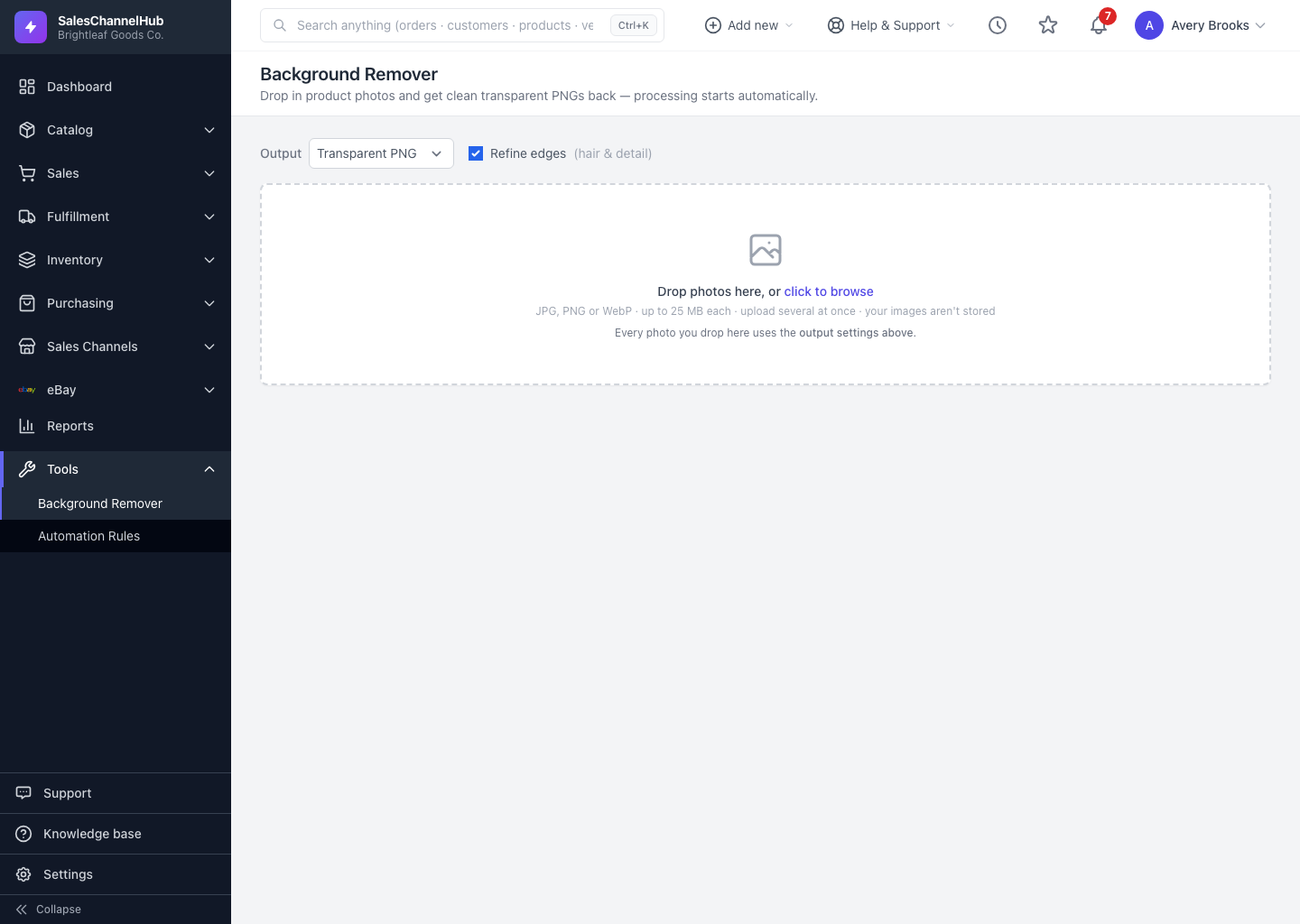
- Open the Background Remover tool. Set your Output first: Transparent PNG, White background, Black background, or Custom color… (enter a hex code). Leave Refine edges on for hair and fine detail.
- Drop photos onto the drop zone, or click to browse. Add several at once: JPG, PNG or WebP, up to 25 MB each.
- Each photo becomes a card and processes automatically. Watch the “X of Y ready” counter as they finish.
- On a finished card, click Download to save it, or hold Hold to compare to peek at the original.
- When several are done, use Download all to save them in one go. Add photos keeps adding more; Clear all starts over.
How do I change the background after the fact?
Pick a new Output, then click Re-run on any finished card to redo it with the new setting. The output setting applies to every new upload and to any card you re-run, so set it before a big batch.
Tip. Photos process one at a time, so a large batch takes a little while. If a card shows Rate-limited or briefly fails, it retries on its own. Give it a moment, or click Retry.