Preview or duplicate a template
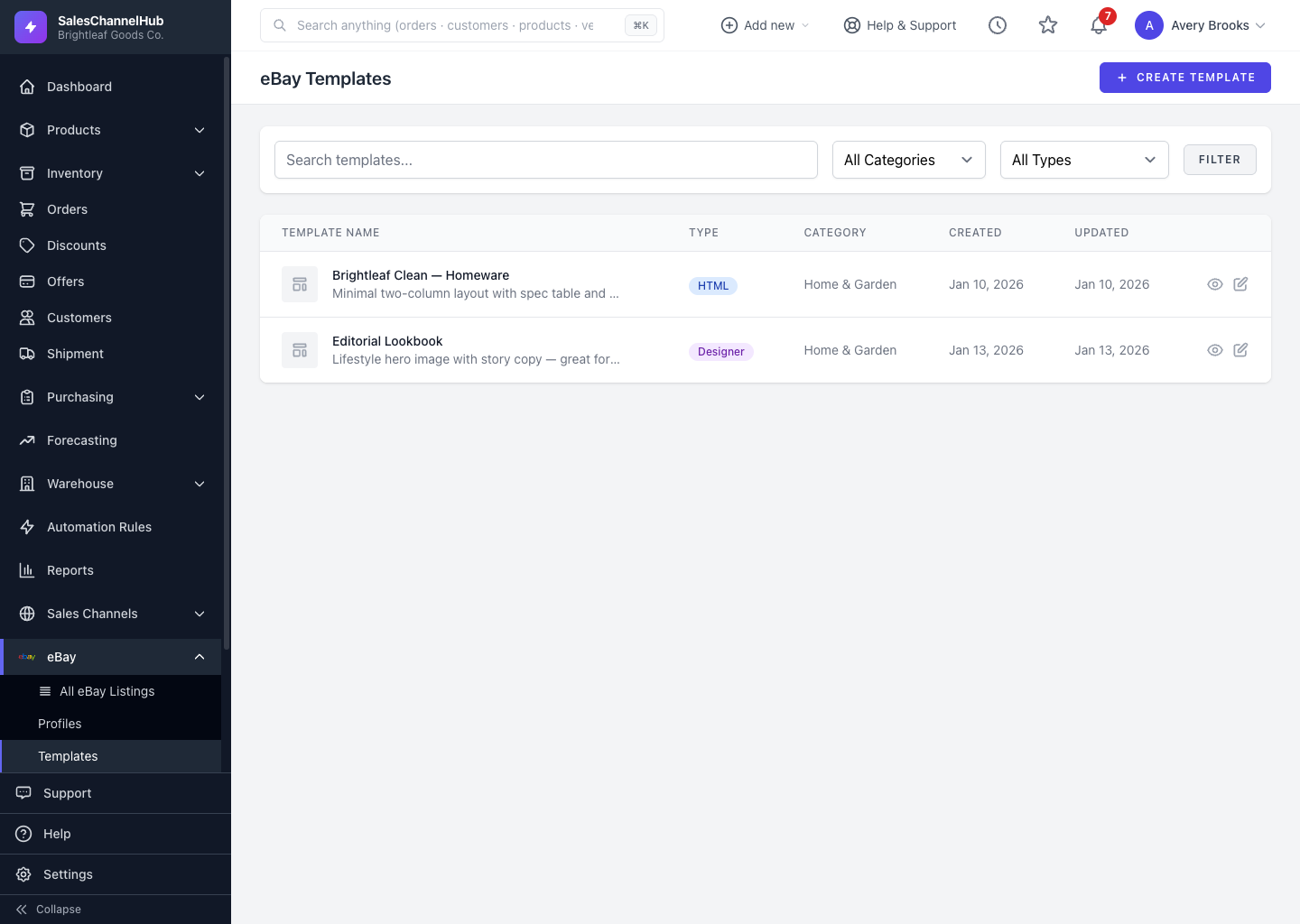
Click the preview icon to see a template with real product data, or the duplicate icon to copy it as a starting point for a variant.
Before you commit a template to your listings, preview it against your own catalog. And when you want a variation, duplicate an existing template rather than rebuilding it.
How do I preview a template?
- On the Templates list, click the preview (eye) icon on a template's row.
- The preview opens with one of your products merged in.
- Pick a different product to preview against another item.
How do I duplicate a template?
- Click the duplicate icon on a template's row (or Use Template in the gallery).
- The copy opens in the editor for you to rename and adjust.
Tip. If your catalog is empty, the preview falls back to sample placeholder data so you can still judge the layout.
Was this article helpful?