Batch mark orders shipped
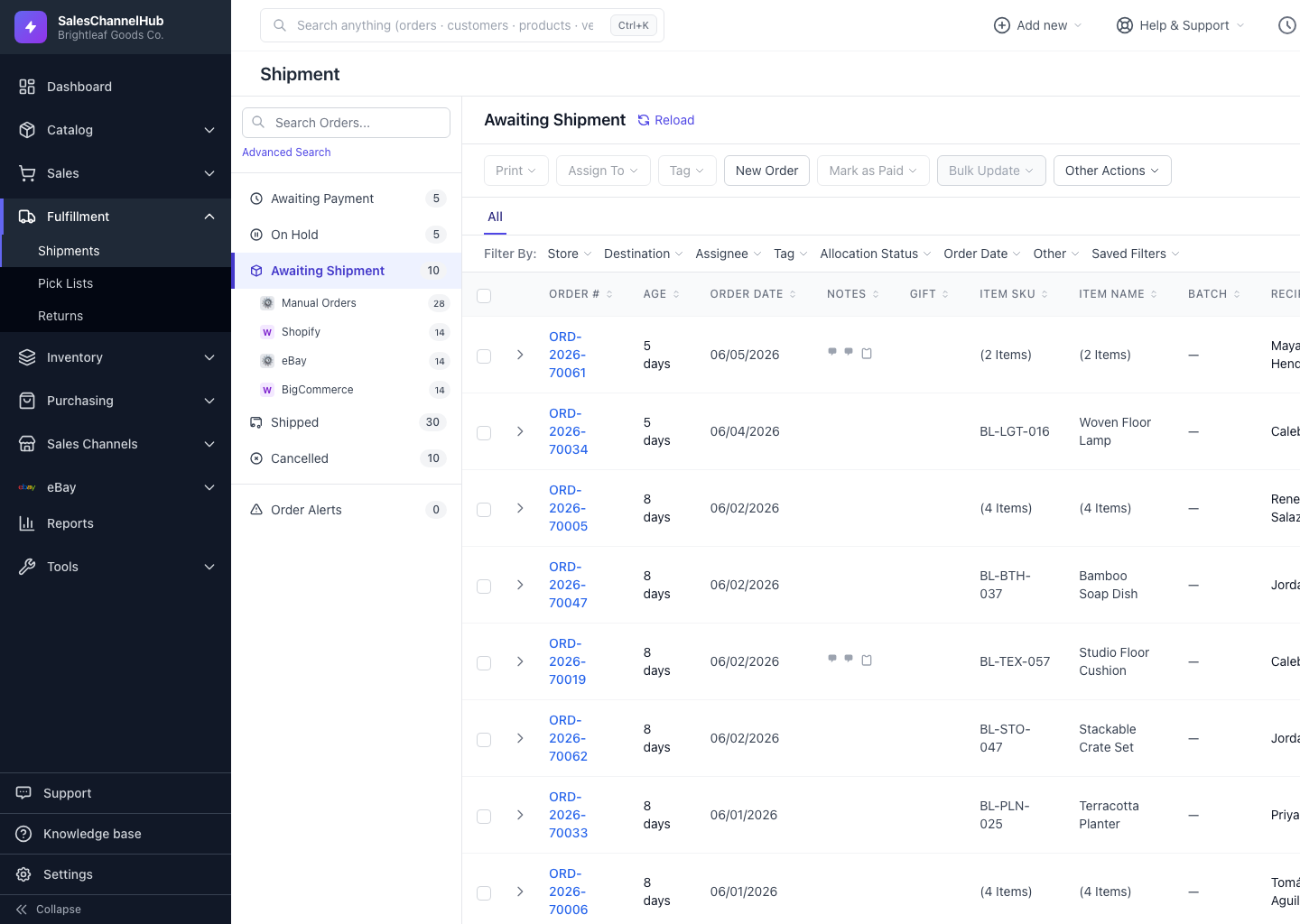
Tick orders and use Other Actions → Mark As Shipped Bulk to mark a whole group shipped when they went out outside the system.
If a group of orders shipped outside the app, such as a freight pickup or your own postage, you can mark them all shipped in one action rather than opening each one.
How do I mark a batch shipped?
- Tick the orders in the table.
- Open Other Actions in the toolbar.
- Click Mark As Shipped Bulk.
Each selected order moves to the Shipped bucket. The same menu has a single Mark As Shipped item when you only have one order selected.
Tip. Use this for freight or pallet orders you label outside the carrier integration. It keeps your buckets accurate without buying labels here.
Was this article helpful?