Quick stock transfer between locations
To move units of one SKU between warehouses in a single step, open Transfers, pick the SKU and a from/to location, then Transfer Stock.
To move stock of one SKU from a source warehouse to a destination in a single step, use a quick transfer. It's the fast path when you just need to rebalance one item between sites.
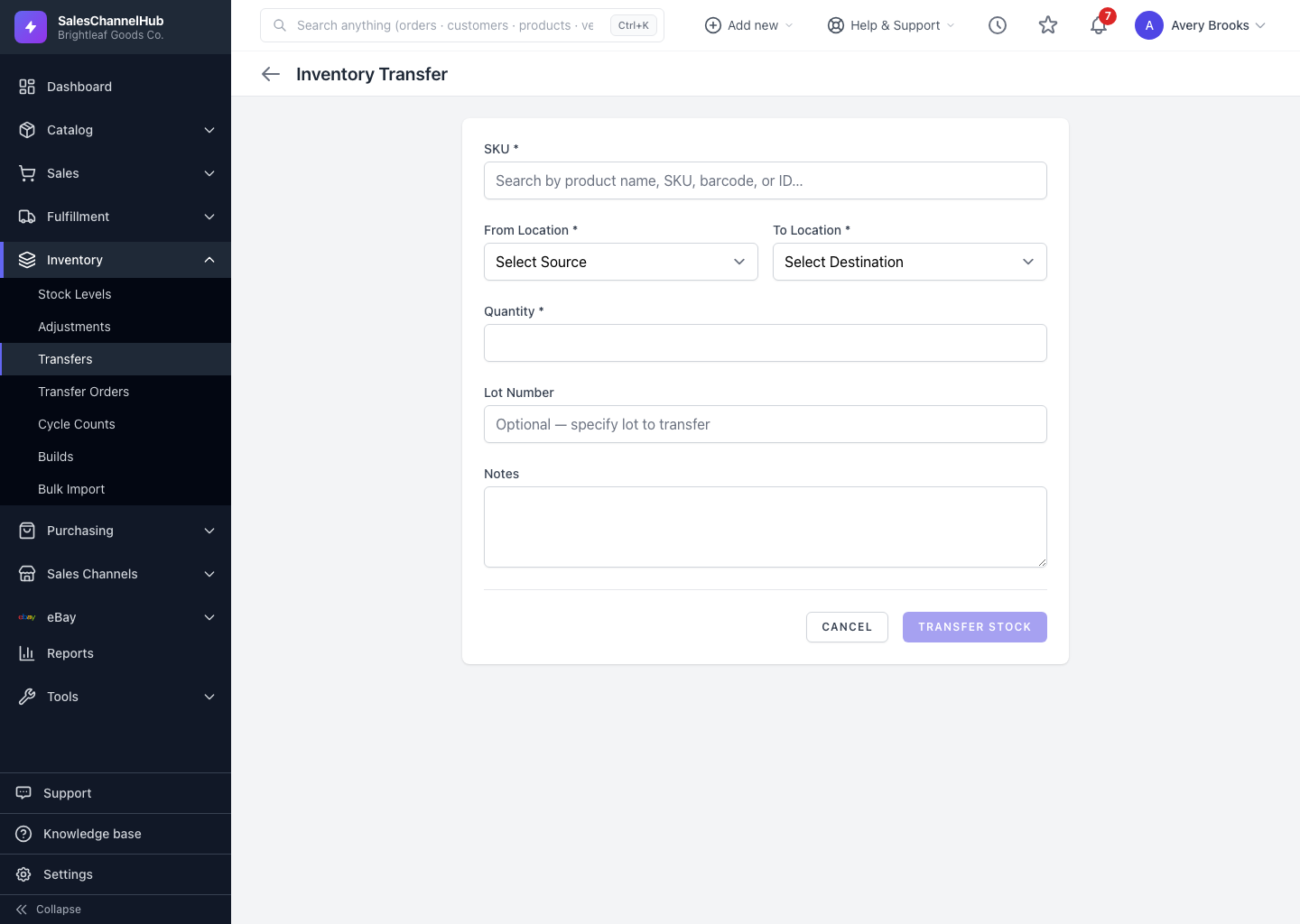
How do I transfer stock?
- Open Transfers from the Inventory group.
- Search and pick the SKU to move.
- Choose a From Location and a different To Location.
- Enter the Quantity, optionally a Lot Number and Notes, then click Transfer Stock.
What if the form won't let me proceed?
- You need at least two active warehouses. With one or none, the page explains why a transfer isn't possible and points you to Adjustments instead.
- The form won't submit until the source and destination are different.
- If the source doesn't hold enough stock, the transfer is rejected and your counts are untouched.
Tip. For multi-SKU moves with shipping and receiving steps, use a Transfer Order instead. A quick transfer is best for a single item shifted immediately.
Common questions
Why can't I see the transfer form?
A transfer needs two active warehouses. With one or none, there's nowhere to move stock between, so the page shows a notice and links you to Adjustments. Add a second warehouse in Settings to enable it.
What's the difference between a quick transfer and a Transfer Order?
A quick transfer moves one SKU between sites immediately, in a single recorded step. A Transfer Order handles multi-SKU moves with separate shipping and receiving stages.
Can I transfer more than I have on hand?
No. If the source location doesn't hold enough stock, the transfer is rejected and both locations' counts stay as they were.