Browse and filter the product list
Open Products, then use the search box and the Category, Brand and Status filters to narrow the list fast.
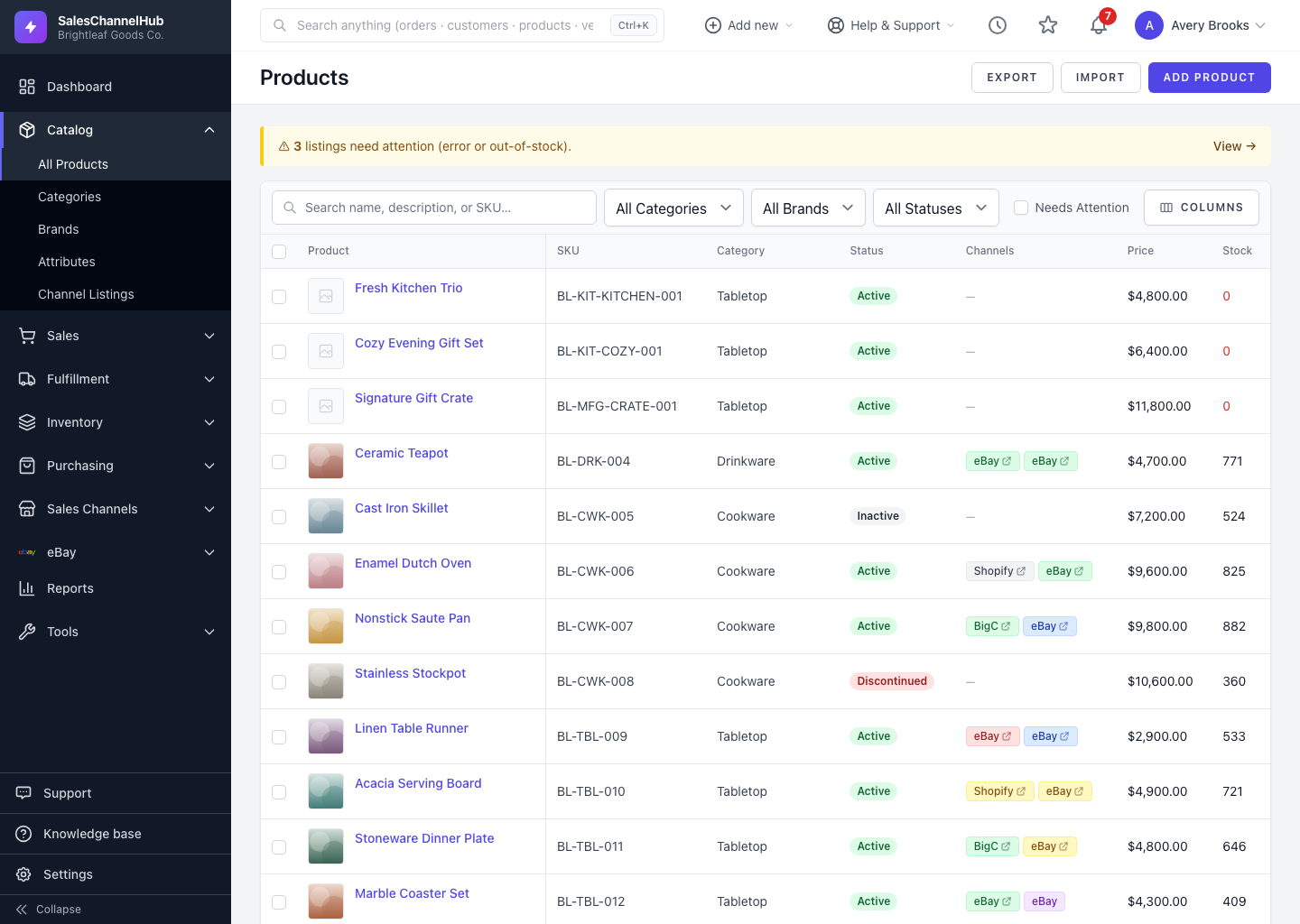
To find a product, open Products and use the search box and filters. The list shows a thumbnail, name, SKU, status, channels, price and stock for your whole catalog.
How do I filter the list?
- Open Products from the Catalog menu (it's labelled All Products in the sidebar).
- Type a name, description or SKU into the search box.
- Use the All Categories, All Brands and All Statuses dropdowns to narrow further.
- Tick Needs Attention to show only listings with an error or that are out of stock.
- Click a sortable column header to sort the list.
What does the yellow banner at the top mean?
It counts listings that need attention, those with a sync error or that are out of stock. Click View → to jump straight to them.
Tip. Filters carry into Export. Narrow the list first and the download contains only the products you're looking at.
Was this article helpful?