Bulk delete products
Tick products on the list and click Delete in the bulk-actions bar. Any product that still has stock is skipped automatically.
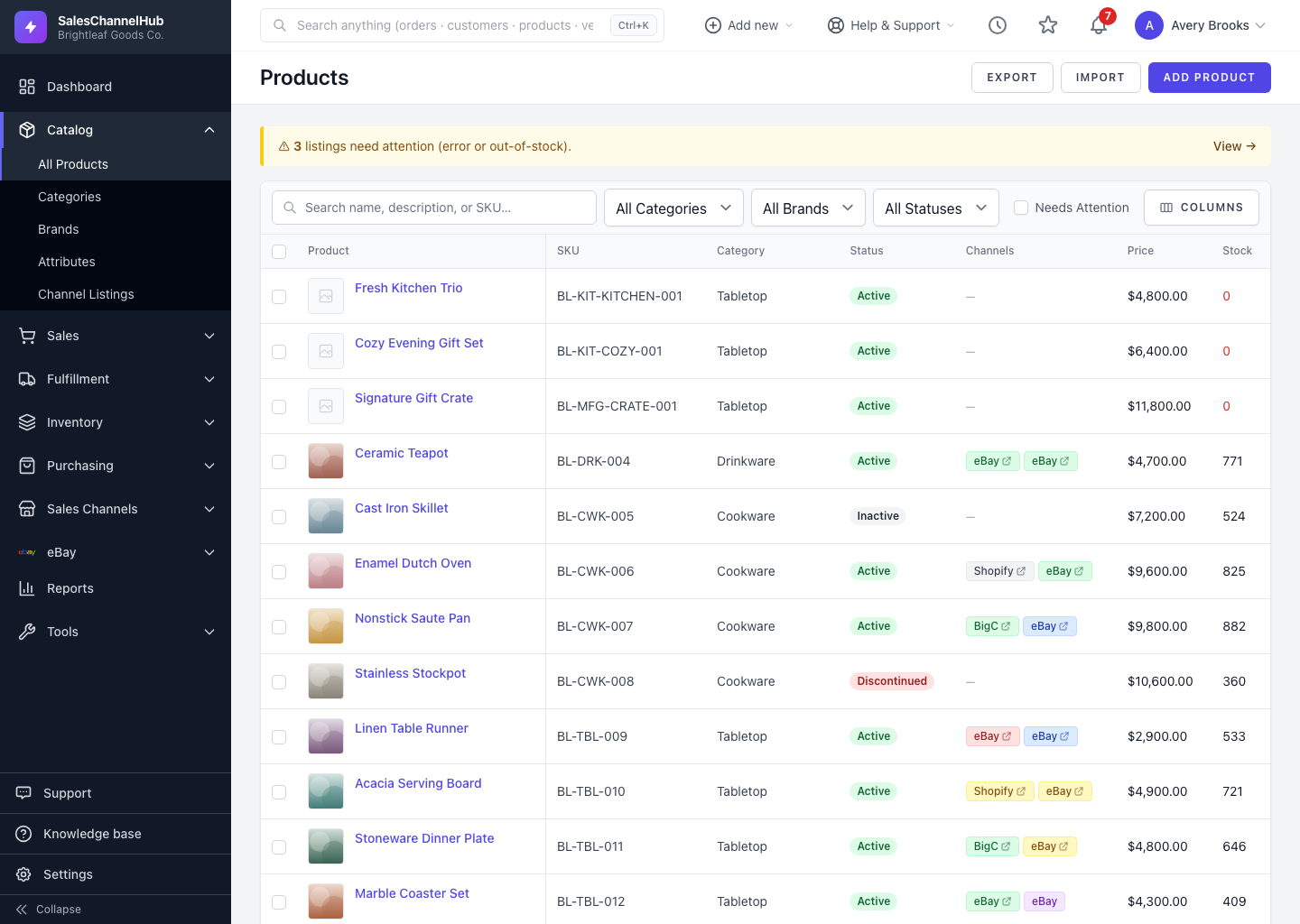
To delete several products at once, tick them on the list and click Delete in the bulk-actions bar. As a safeguard, any product that still has inventory is skipped, so you don't lose stocked items by accident.
How do I bulk delete products?
- Open Products and tick the products you want to remove.
- In the bulk-actions bar, click Delete.
- Confirm when prompted. You'll see a reminder that products with existing inventory are skipped.
- The result message tells you how many were deleted and how many were skipped.
Tip. If products you expected to delete were skipped, clear their stock first, or discontinue them instead of deleting.
Common questions
Why were some of my selected products not deleted?
They still have stock on hand. Bulk delete skips any product with existing inventory. Clear the stock first, or discontinue those products instead.
Can I bulk delete and bulk change status from the same place?
Yes. Tick the products and the bulk-actions bar offers Activate, Deactivate, Discontinue and Delete together.
Was this article helpful?