Disconnect an integration
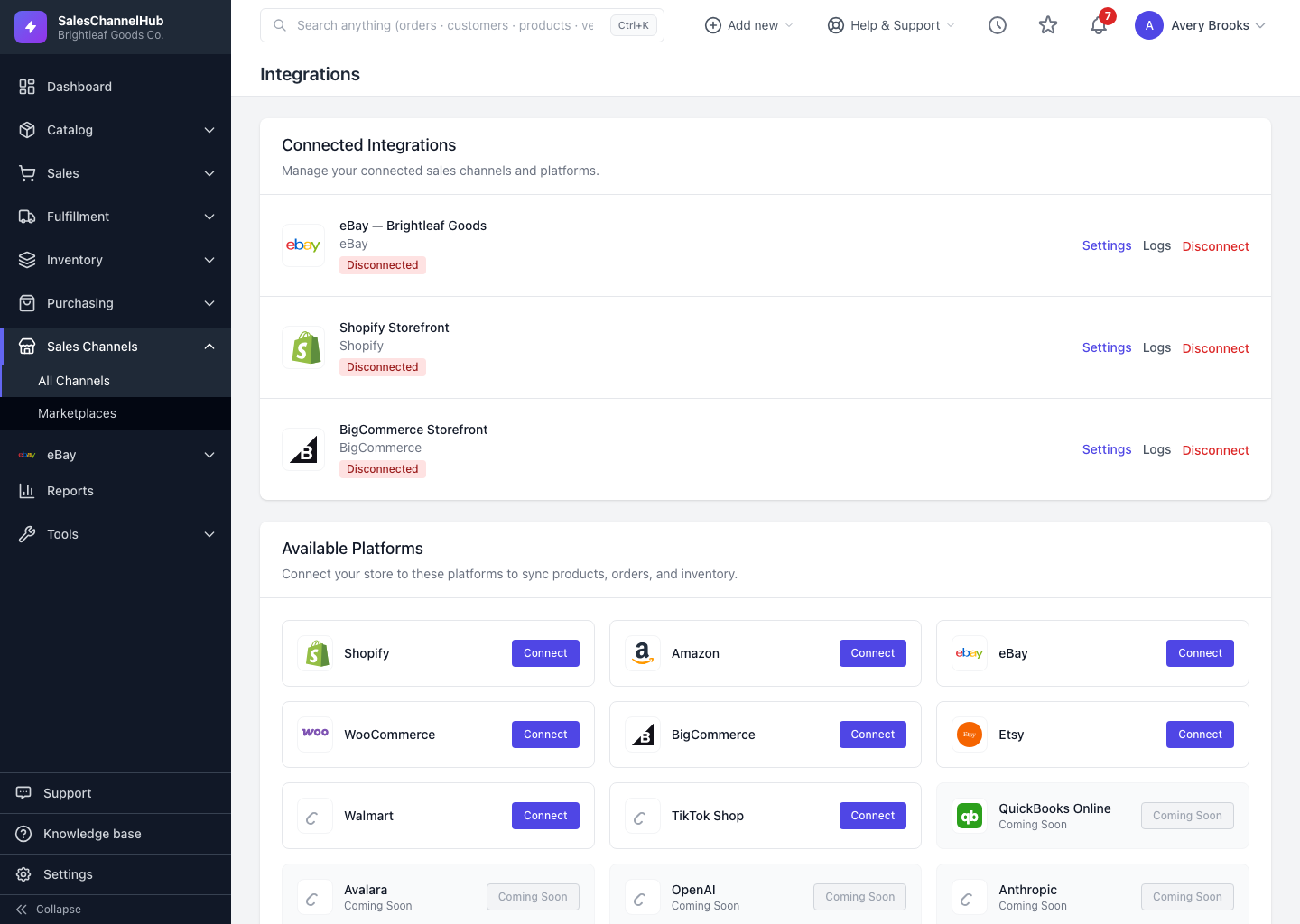
Click Disconnect on a connection's row to remove it and stop all syncing. Records already synced into SalesChannelHub stay in place.
Disconnecting removes a channel's connection and stops all syncing for it. Do this when you've stopped selling on a channel or you're switching to a different account.
How do I disconnect a channel?
- On the integrations page, find the connection under Connected Integrations.
- Click Disconnect on its row and confirm the prompt.
What happens when I disconnect?
- The connection and its stored credentials are removed, and any webhooks are torn down so the channel stops sending notifications.
- Records already synced into SalesChannelHub stay in place: your orders, products and customers.
Tip. If the connection only needs new access (an amber Reconnect required badge), use Reconnect instead. It's quicker and keeps the connection's history and settings.
Common questions
Do I lose my synced orders and products when I disconnect?
No. Records already imported stay in SalesChannelHub. Disconnecting removes the connection and its credentials and stops future syncing, but it doesn't delete your data.
Can I reconnect the same channel later?
Yes. Connect it again from Available Platforms and run through the connect flow. If the connection just needs fresh access, use Reconnect instead of disconnecting.