Send a customer message from an order
Use the Message customer panel to email the customer from the order, with an optional AI-drafted starting point.
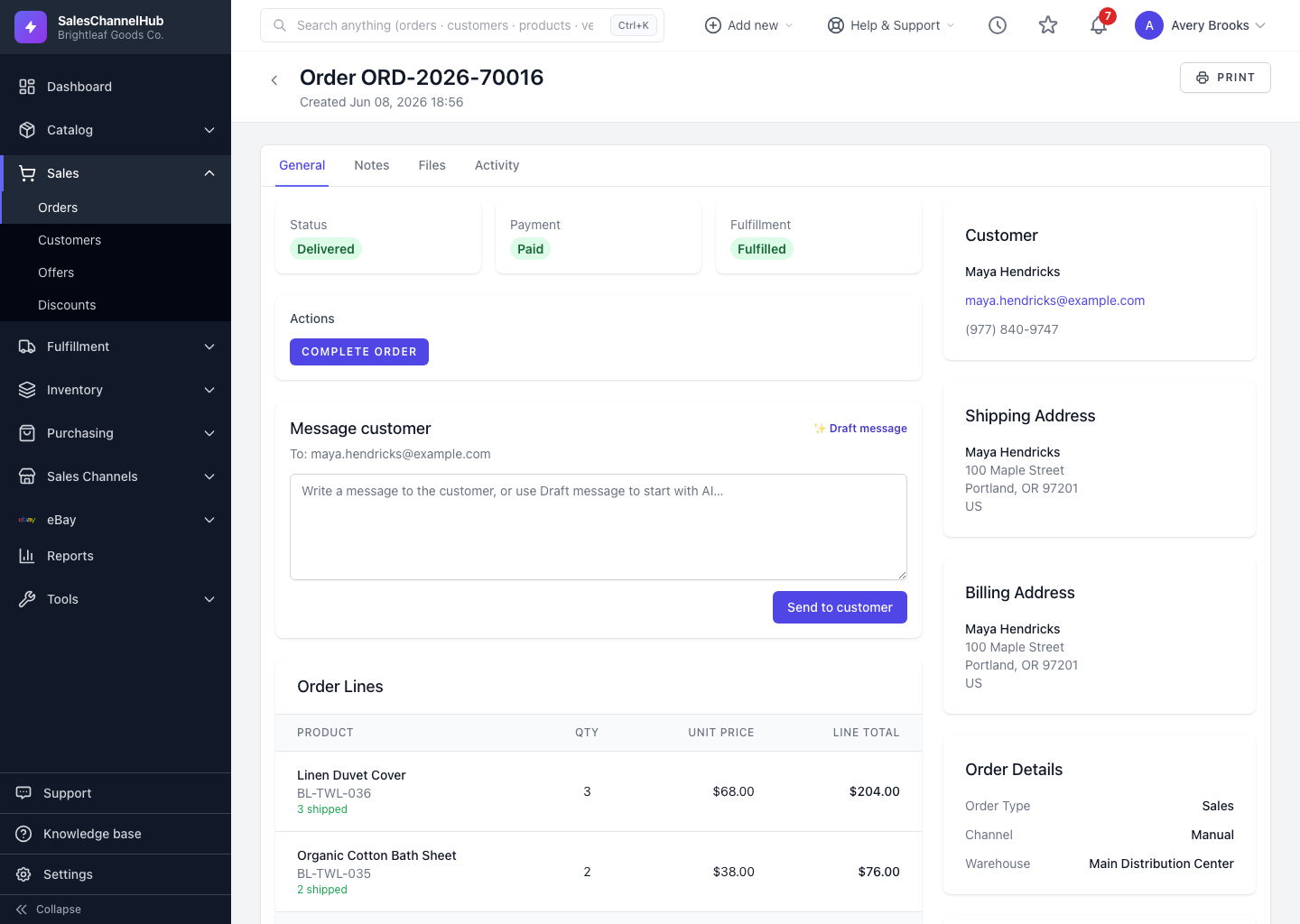
To email a customer about their order, use the Message customer panel on the order page. Every message is logged against the order.
How do I send a message?
- Open the order and find the Message customer panel. It appears when the customer has an email on file.
- Type your message, or click Draft message to start from an AI-written draft you can edit.
- Review the wording, then click Send to customer.
The email goes out under a subject line referencing the order number, and an entry is added to the order's activity record.
Tip. AI drafts are a starting point, not send-and-forget. Read the message and adjust the tone and details before it leaves.
Common questions
Why don't I see the Message customer panel?
It only appears when the order's customer has an email address on file. Add an email to the customer record and it shows up.
Do I have to use the AI draft?
No. Draft message is optional. You can type the whole message yourself, and you should always review any AI draft before sending.
Was this article helpful?