Submit and ship a transfer order
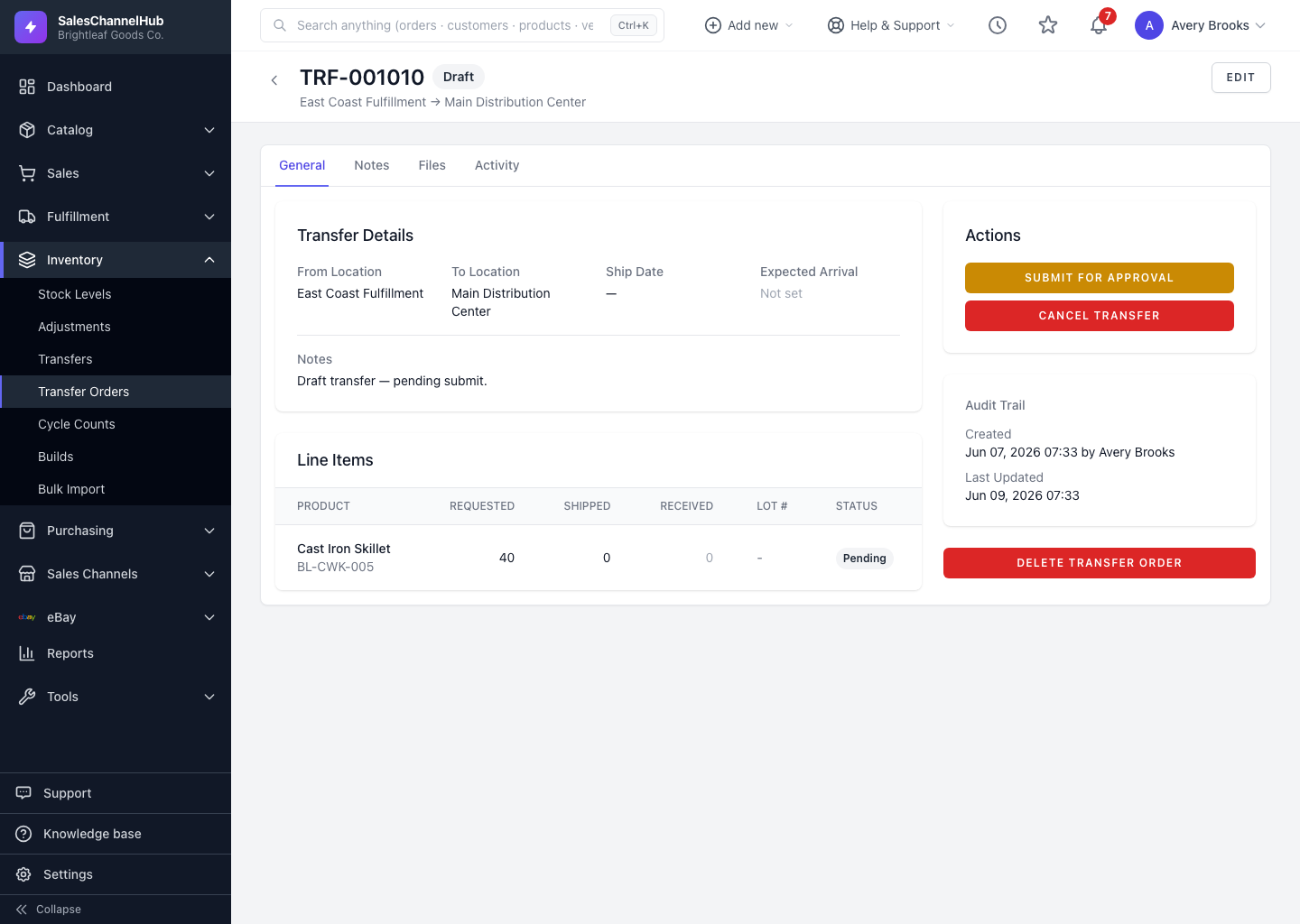
Click Submit for Approval on a draft, then Ship Transfer. Shipping decrements the source's on-hand and marks the units in-transit.
Shipping is the point where inventory leaves the source location. Before that, a draft has to be submitted for approval. Shipping then drops the source's on-hand and records the units as in-transit.
How do I ship a transfer?
- Open a draft transfer order with at least one line.
- In the Actions panel, click Submit for Approval. The status becomes Pending.
- Click Ship Transfer and confirm.
What happens to stock when I ship?
- Source on-hand drops by the shipped quantity.
- The destination shows the stock as in-transit until it's received.
Tip. Shipping sends the whole requested quantity on every line. To send only part of an order, edit the draft's quantities before you ship.
Common questions
Can I ship only some of the lines?
Shipping moves the full requested quantity for every line. To send less, lower the quantities on the draft before shipping, or split into two transfers.
What if the source doesn't have enough stock to ship?
The transfer can't ship more than the source holds. Adjust the line quantity to what's available, or replenish the source location first.