Customise the product list columns
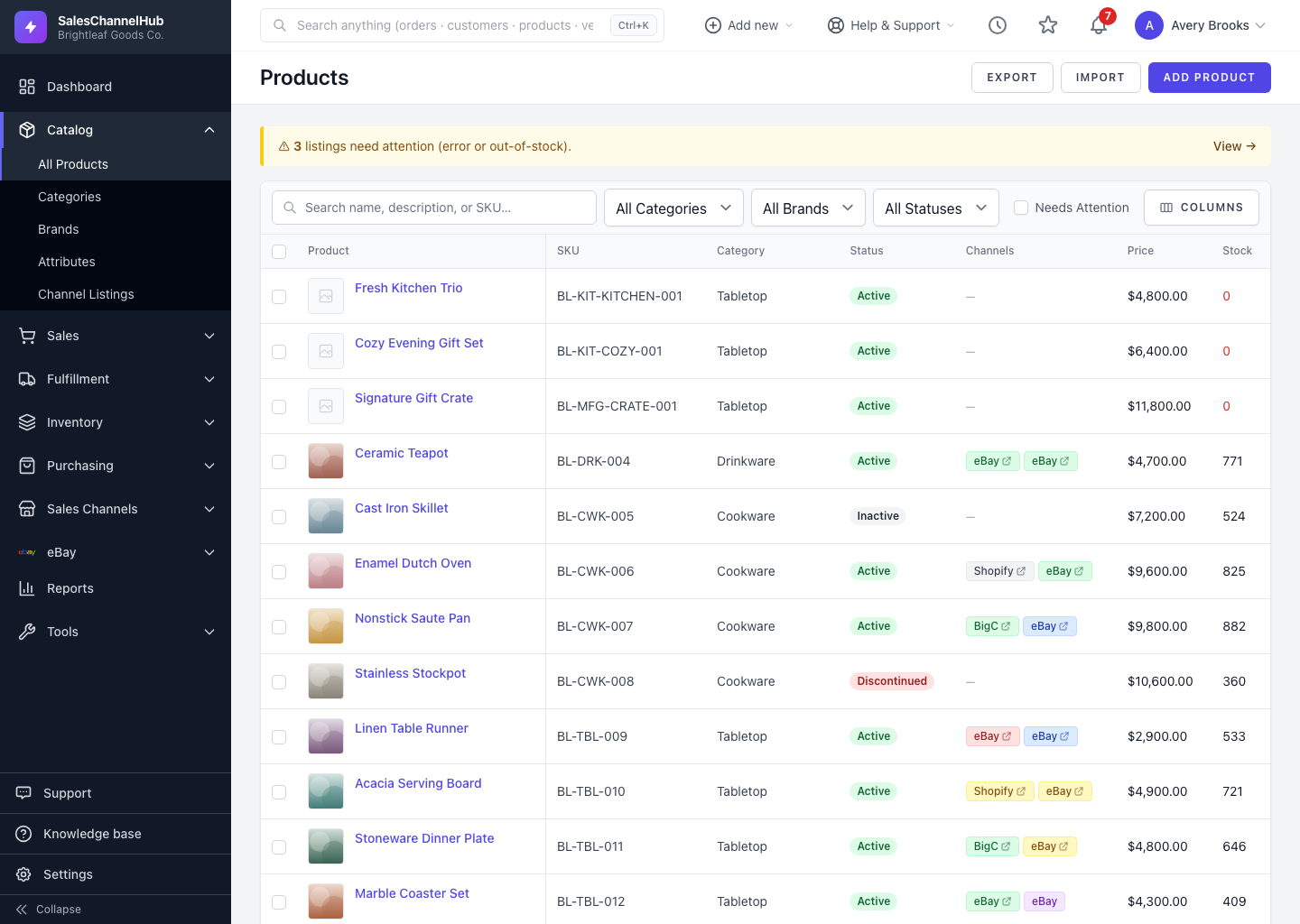
Use the column selector in the filter bar to show or hide columns like Cost, Brand, Type and Available.
To change which columns the product list shows, use the column selector in the filter bar. The default set covers most work, but you can switch on Cost, Brand, Type or Available when you need them.
How do I show or hide columns?
- On the Products list, open the column selector in the filter bar.
- Tick the columns you want, such as Brand, Type, Cost or Available.
- Untick any column you don't need, like Channels.
- Your choices are remembered the next time you open the list.
Tip. The Product column stays pinned to the left as you scroll sideways, so you always know which row you're reading.
Was this article helpful?