Schedule a report by email
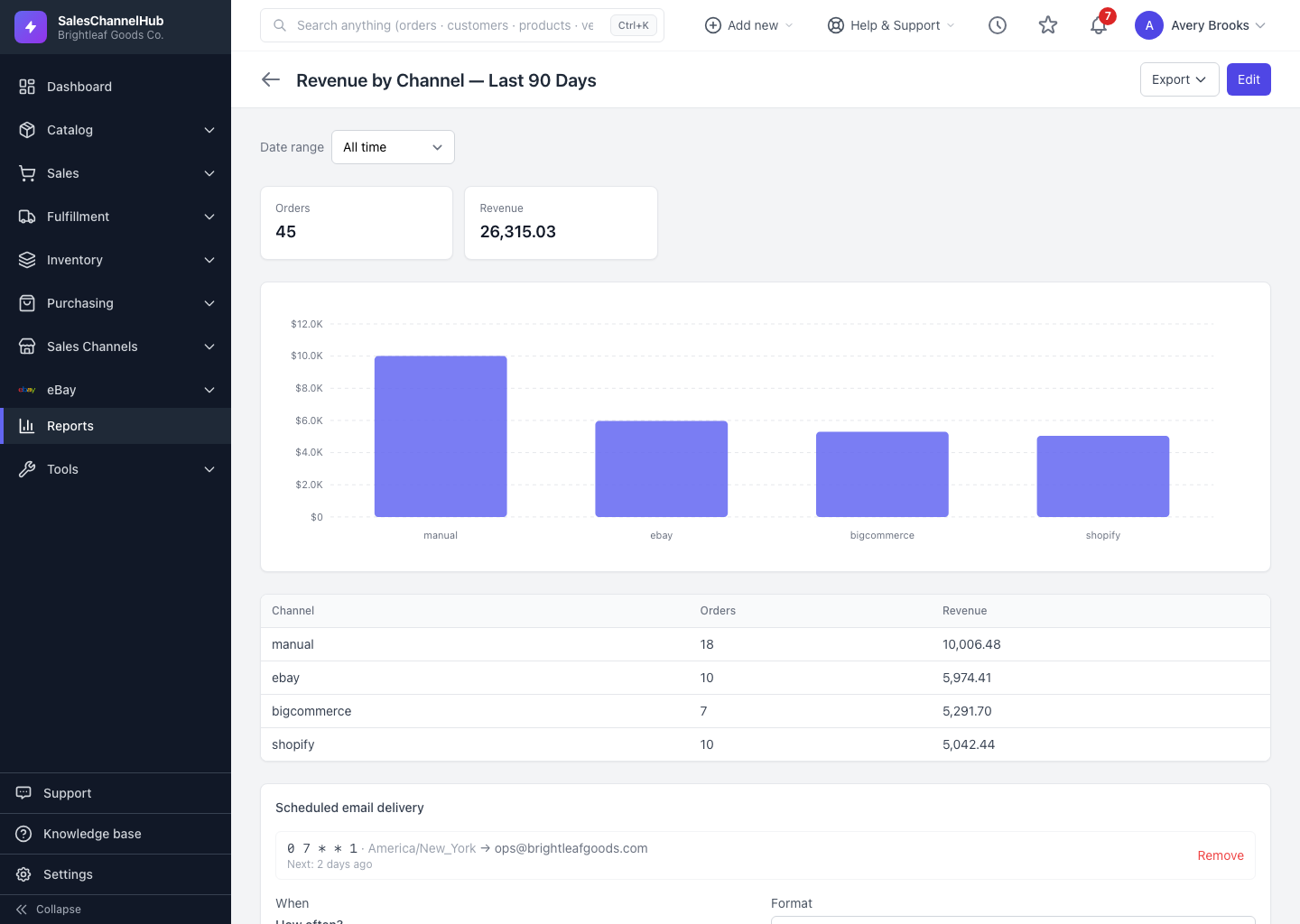
On a report you own, open Scheduled email delivery, set When, pick a Format and Timezone, add Recipients, then click Add schedule.
Instead of remembering to run a report, let it deliver itself. Scheduling sits at the bottom of a saved report's results page and is managed by the report's owner.
How do I schedule a report?
- Open a report you own and scroll to Scheduled email delivery.
- Set When using the schedule picker: every hour, day, week or month, or a custom pattern.
- Pick a Format (CSV, Excel or PDF) and the Timezone the schedule runs in.
- Enter one or more email addresses under Recipients, separated by commas or new lines.
- Click Add schedule.
How do I manage existing schedules?
Each schedule is listed with its timing, recipients and Next run time. Click Remove to delete one you no longer need.
Tip. A daily 8am summary to the ops team is a common setup. Pick "every day" and your local timezone so it lands first thing.
Common questions
Who can schedule a report?
Only the report's owner. The Scheduled email delivery panel appears on saved reports you own, not on ones shared with you. Duplicate a shared report to schedule your own copy.
Can the recipients be people without an account?
Yes. Recipients are plain email addresses, so you can send to anyone. Separate multiple addresses with commas or new lines.
Will the scheduled email respect my filters and date range?
It runs the saved report definition, including its filters and any relative date window built into them. Set the report up to show what you want delivered, then schedule it.