Delete an attribute
Hover an attribute and click Delete. The app blocks the delete if any product or variant still relies on it.
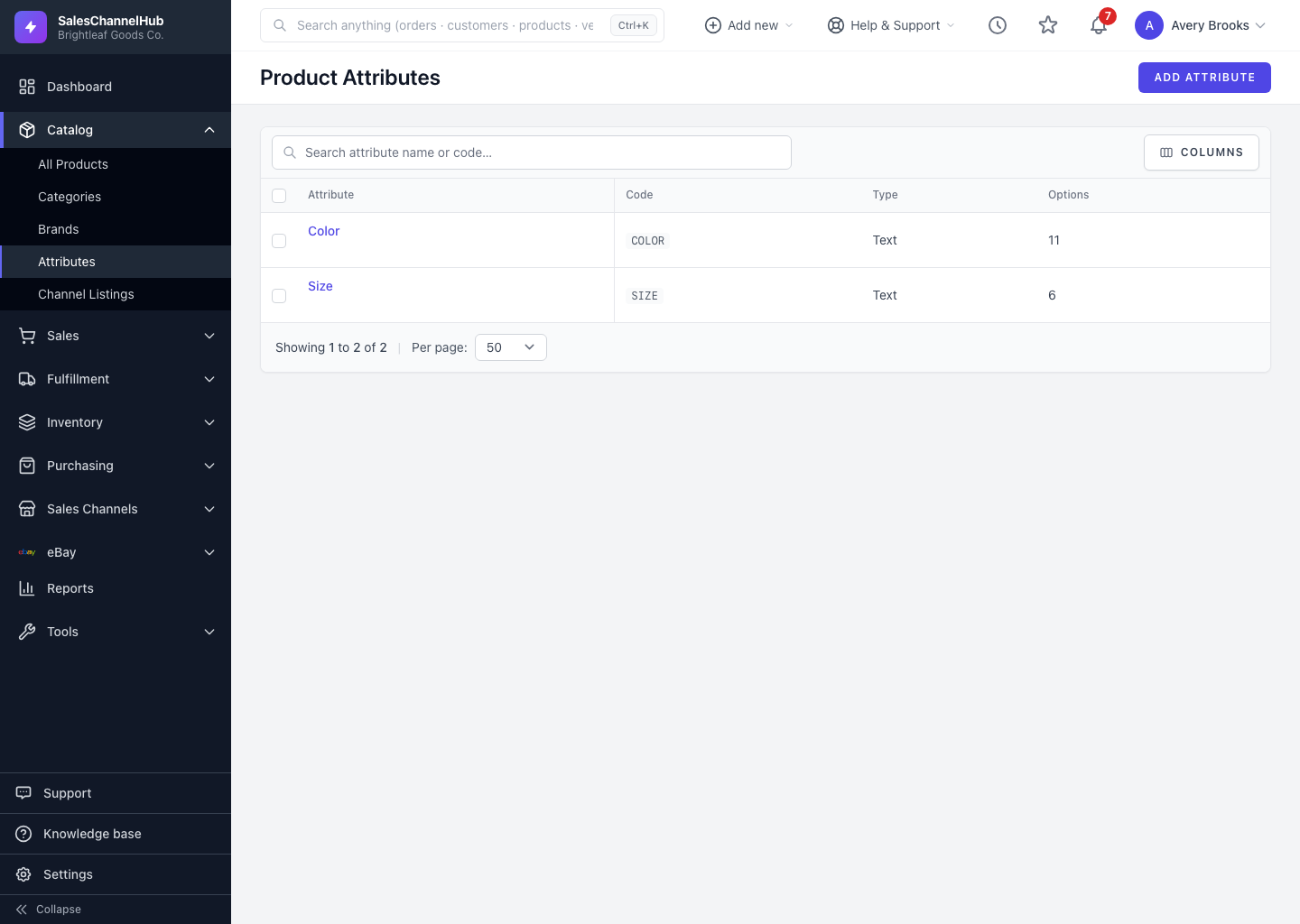
To remove an attribute, hover its row and click Delete (or use Delete on its detail page), then confirm. The app blocks deletes that would break existing products.
How do I delete an attribute?
- On the Product Attributes list, hover the row and click Delete.
- Confirm in the prompt.
What stops a delete?
- If any products use the attribute, the delete is blocked.
- If any of its options are still linked to product variants (SKUs), the delete is also blocked.
- When nothing depends on it, the attribute and all its options are removed together.
Tip. If a delete is blocked, open the affected products' variants and swap out the attribute first, then try again.
Common questions
Why is my attribute delete blocked?
A product or variant still relies on it. Either the attribute is assigned to products, or one of its options is linked to a variant SKU. Detach it from those records, then delete.
Does deleting an attribute delete its options?
Yes. Once nothing depends on it, the attribute and all of its options are removed together in one step.
Was this article helpful?