Read a rule's run history
Each rule keeps a run history showing when it ran, its status, candidates matched, and per-record errors.
Every rule records each time it ran. The run history is where you confirm a rule is working and investigate anything that didn't go through.
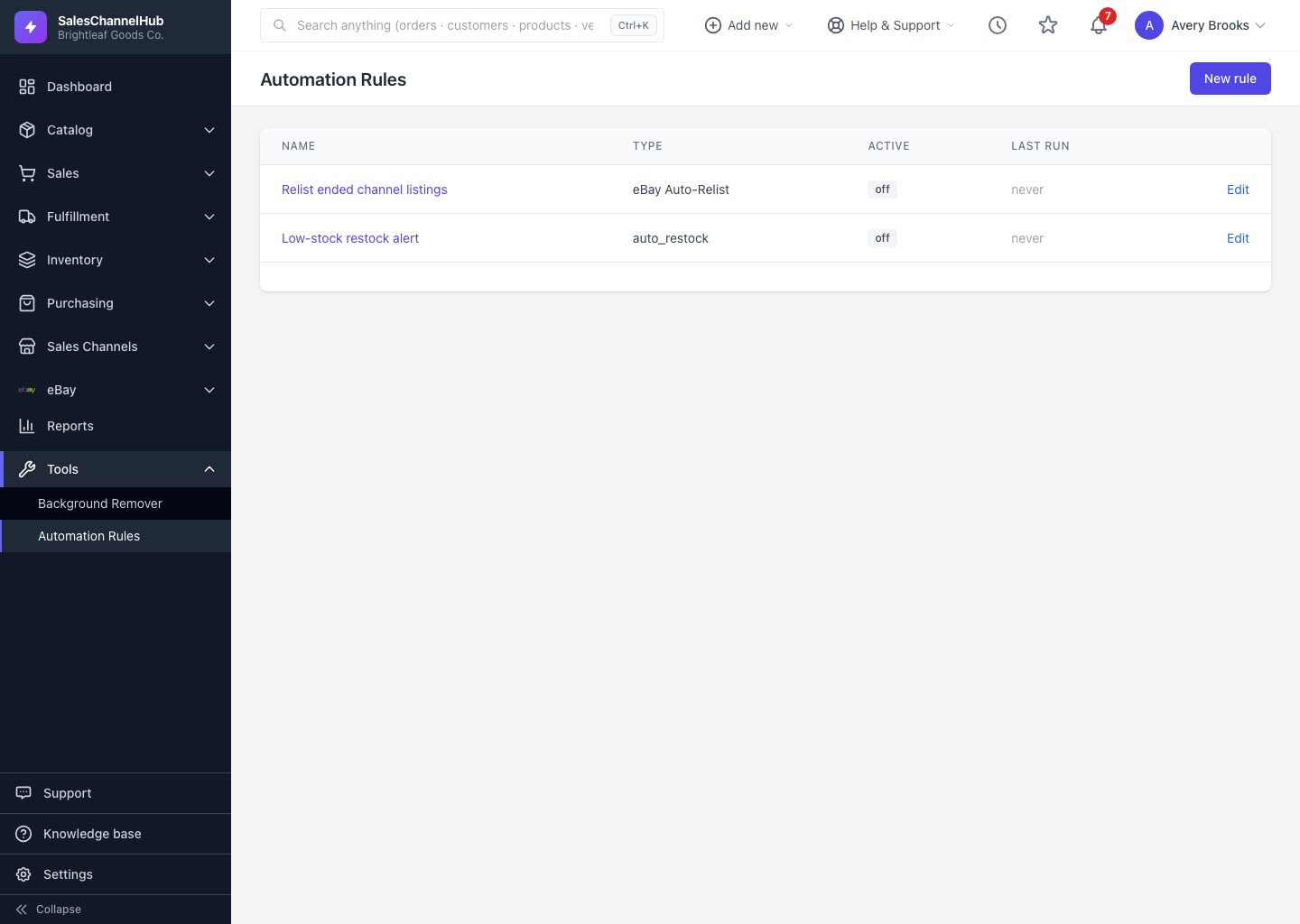
What's in the run history?
- Open a rule from the list to reach its detail page. The Run history table sits below the rule's setup.
- Each row shows when the run Started, its Status, the number of Candidates it matched, and the Outcome (how many succeeded, plus any that failed).
- Click Details on a run to open its breakdown: status, candidate count, succeeded and failed counts, start and completed times, duration, and a Per-candidate errors table.
What does each status mean?
- success — everything went through.
- partial — some candidates were acted on, some failed.
- failed — the run didn't complete.
- skipped — there was nothing to do, or the rule was inactive.
- running — the run is still in progress.
Tip. Seeing failures? Open the run's Details and read the per-candidate errors. Each row names the target and the reason, such as an order that was no longer in a cancellable state.
Common questions
What does the Outcome column count?
How many candidates the rule acted on successfully, with any failures shown alongside as "N failed". The full split (succeeded, failed) is on the run's Details page.
A run says partial. What do I do?
Open its Details and read the Per-candidate errors table. It lists each failed target and the reason, so you can fix the underlying record and let the rule pick it up next run.
Why does a run show skipped?
There was nothing for it to do, or the rule was switched off when it ran. A skipped run is normal when no records currently match the conditions.