Run and customize a template report
On the Templates tab, click Run on a card for instant results, or Customize to open the builder pre-filled and save it as your own report.
Templates are pre-built reports for the questions sellers ask most, across sales, products, inventory, purchasing, fulfilment and returns. They're the fastest way to a useful answer.
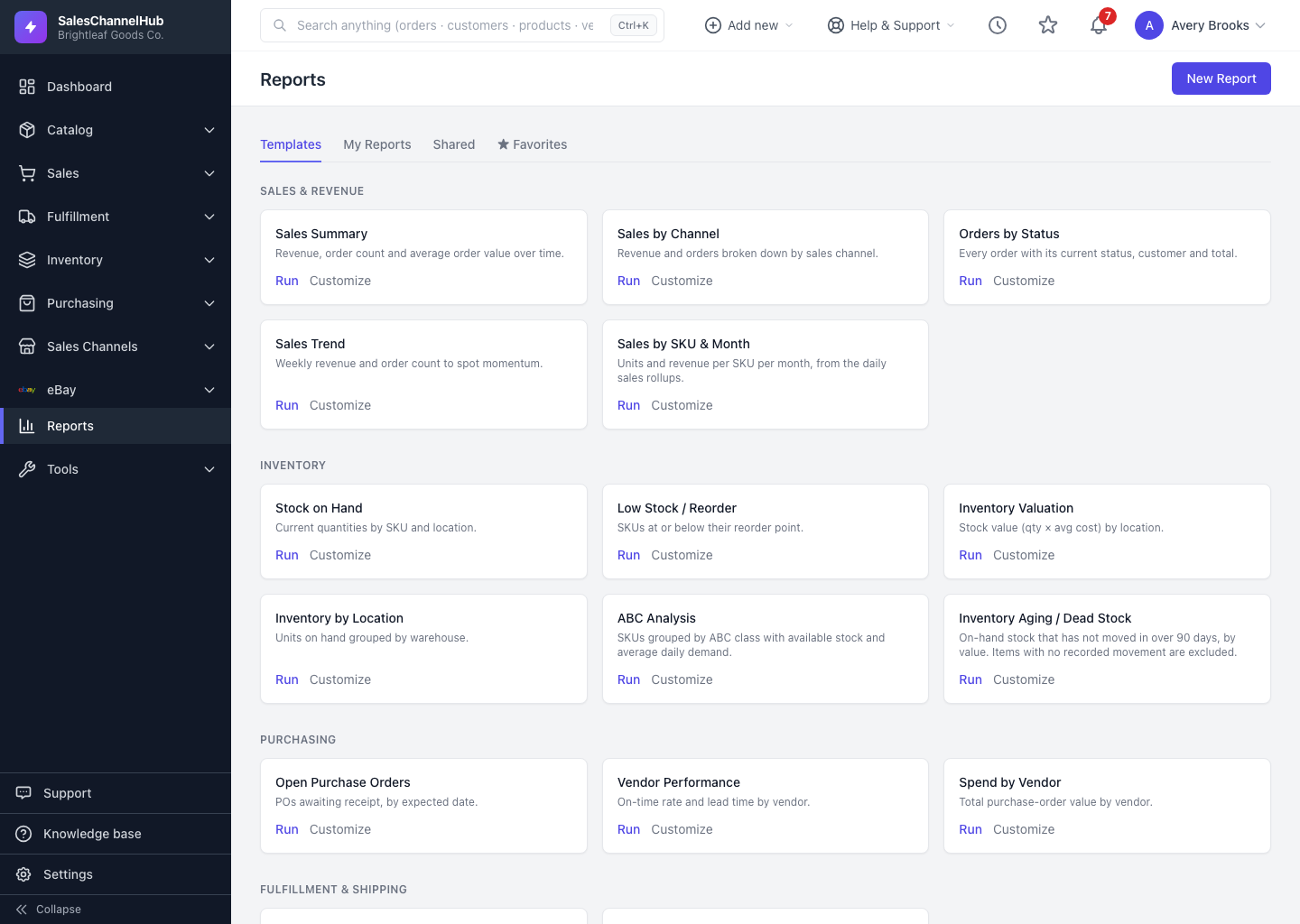
How do I run a template?
- On the Reports page, stay on the Templates tab.
- Find a card such as Sales Summary, Sales by Channel, Low Stock / Reorder or Open Purchase Orders.
- Click Run to open its results immediately.
How do I make a template my own?
- On a template card, click Customize, or Customize at the top of a running template.
- The builder opens pre-filled with the template's columns, filters and grouping.
- Change anything you like, give it a name, and save it as your own report.
Tip. Running a template saves nothing and never clutters your list. Only Customize plus save creates a report you'll see under My Reports.
Common questions
Does running a template save it to my list?
No. Run just opens the results. Only Customize followed by saving creates a report under My Reports.
Can I change a template's columns or filters?
Yes, by customizing it. Click Customize to open the builder pre-filled, edit anything, then save it as your own report. The original template stays as it was.
Why don't I see a Customize link?
Customizing needs the report-build permission. Without it you can still Run any template. Ask an admin to grant report-builder management access if you need to save your own.