Pick items on a pick list
On an in-progress list, click Pick on a line and enter the quantity picked. The line status updates from the quantity automatically.
Once a pick list is in progress, each line gets a Pick action where you record how many units you pulled. The line status updates from the quantity on its own.
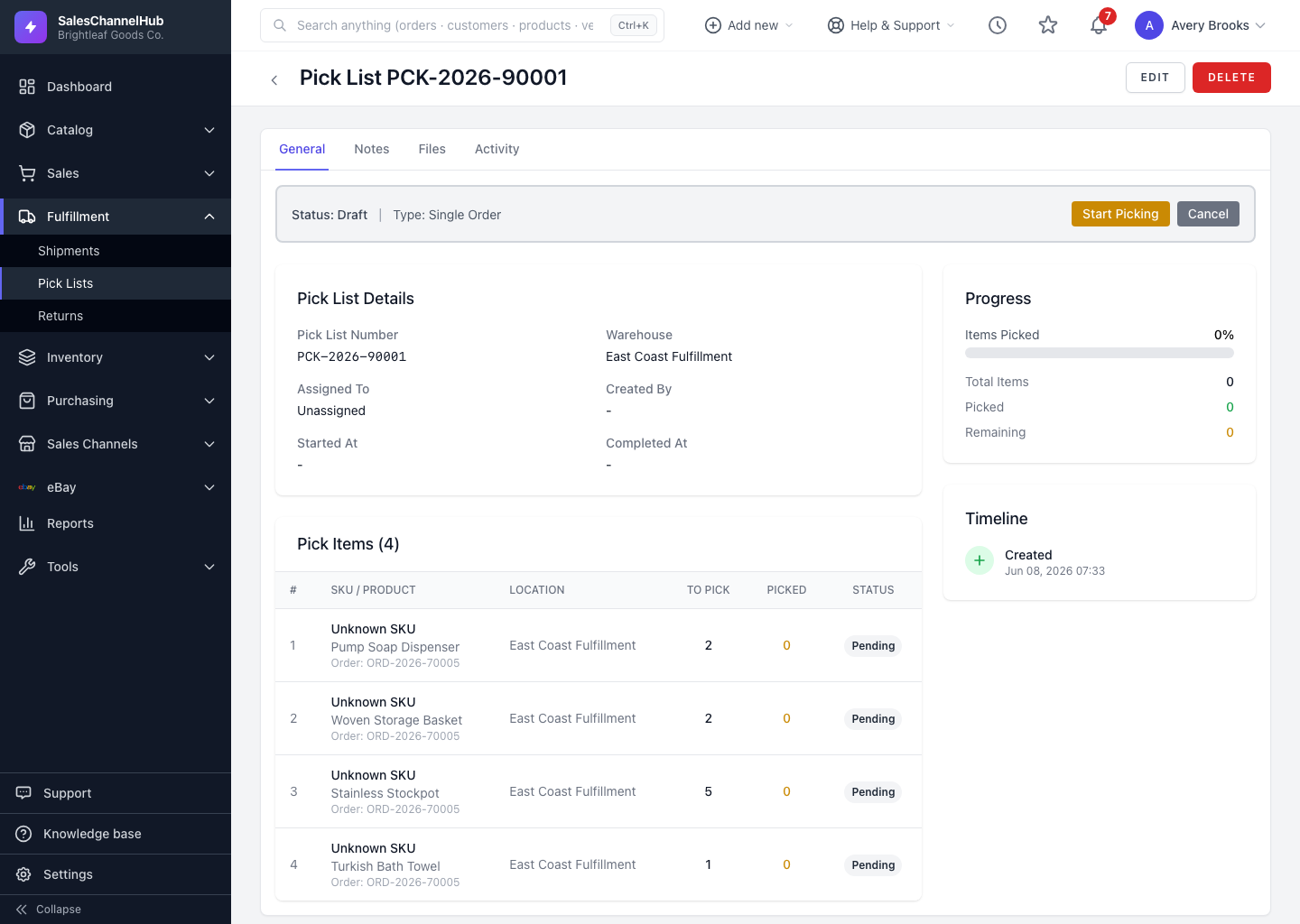
How do I record a pick?
- If the list is still Draft or Assigned, click Start Picking first.
- On a line, click Pick to open the Record Pick window.
- Enter the Quantity Picked. Add a Lot Number or Notes if needed.
- Click Save.
What does each line status mean?
- Picked — you pulled the full required quantity.
- Short — you pulled some, but not all.
- Pending — nothing recorded yet.
Tip. Can't find any stock for a line? Leave it at zero and it stays Pending, so a supervisor can follow up before the list is completed.
Common questions
Why is there no Pick button on a line?
The list isn't In Progress yet. Click Start Picking in the status banner first, then each unpicked line shows a Pick action.
What happens if I pick fewer units than required?
The line is marked Short and highlighted yellow. The shortage is recorded, and you can still complete the list with short lines on it.
Can I record a lot number while picking?
Yes. The Record Pick window has a Lot Number field alongside the quantity and notes.