Move an order through its status
Use the Actions buttons on an order to advance it from pending to confirmed, processing, shipped and beyond.
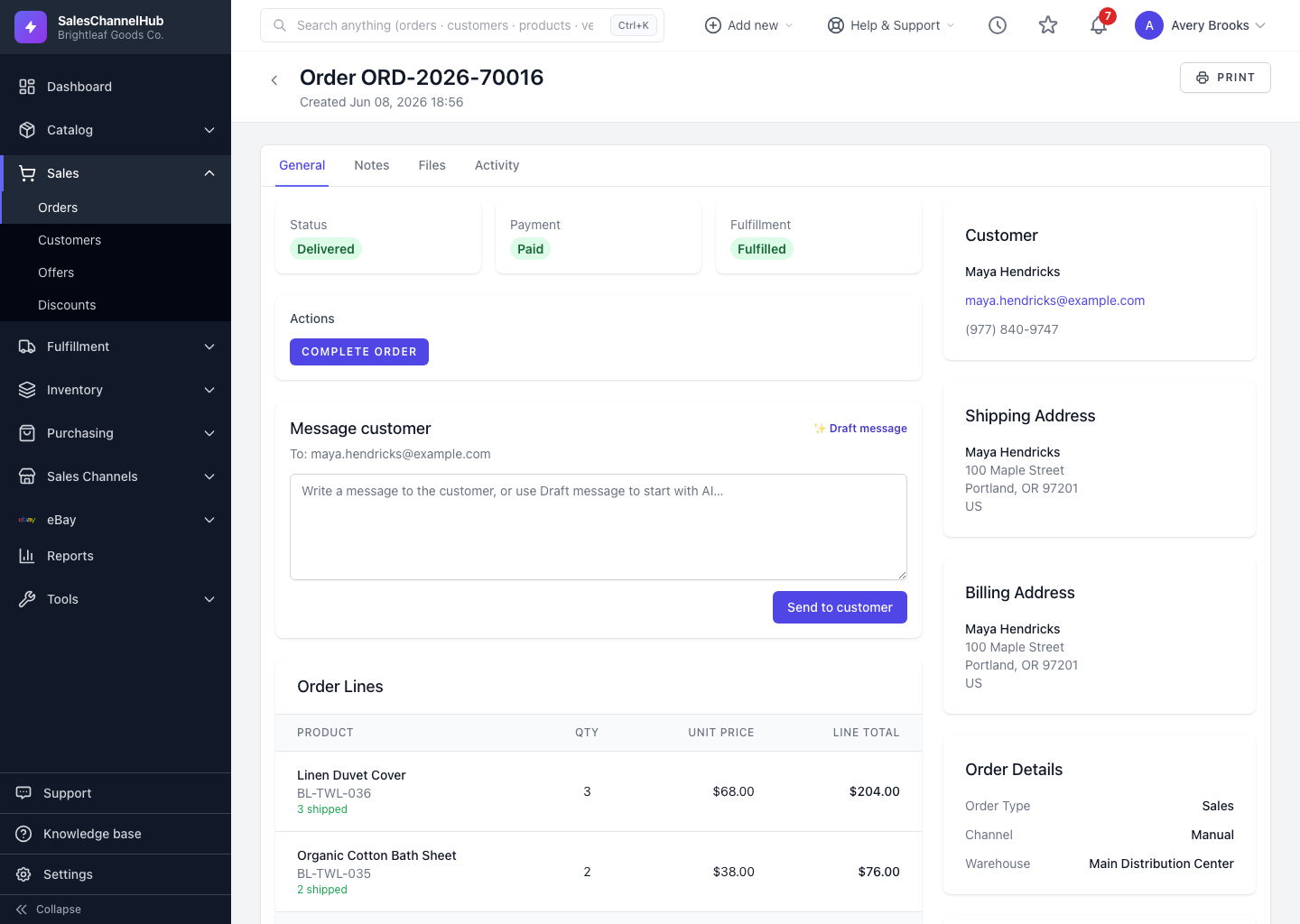
To advance an order, use the Actions buttons on its detail page. Only the moves valid from the current status appear, so you always step one stage at a time.
How do I advance an order?
- Open the order and find the Actions panel near the top.
- Click the button for the next stage. Labels follow the order's state: Submit Order on a draft, Confirm on a pending order, then Start Processing, Mark Shipped, Mark Delivered and Complete Order.
- The new status is recorded with a timestamp in the order's Status History.
Tip. Every move logs who made it and when, so the Status History on the order is a full audit trail of its journey.
Common questions
Why don't I see the next status I expected?
The Actions panel only shows transitions allowed from the current status. If a move isn't there, the order isn't in a state that permits it yet.
Can I skip straight to Shipped?
No. An order moves one valid stage at a time. To create a shipment it must reach Processing first, using Start Processing.
Was this article helpful?