Export customers to CSV
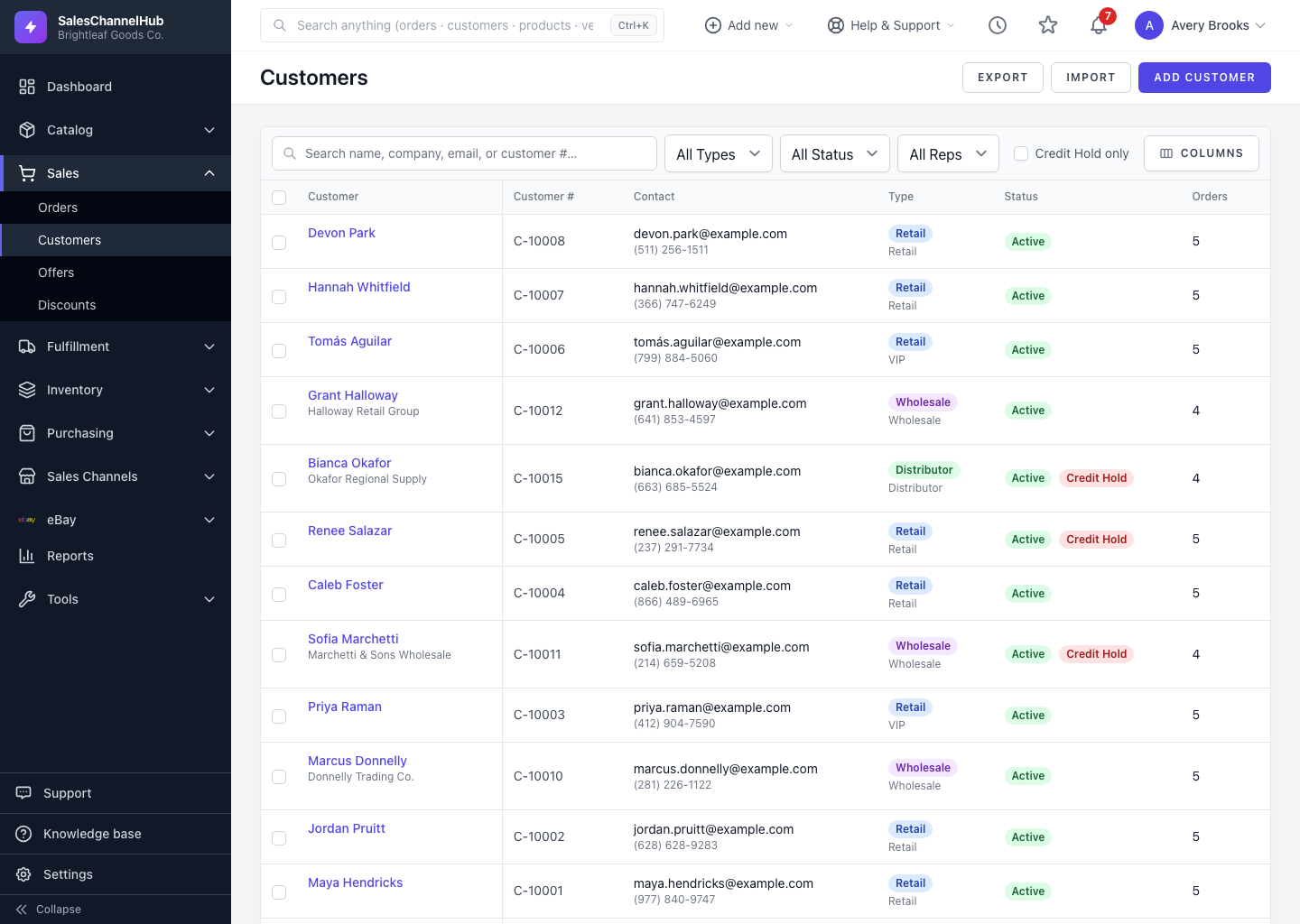
Apply any filters, then click Export on the customer list to download a CSV of the matching customers, including their customer numbers.
To download your customers as a spreadsheet, click Export on the customer list. The export respects whatever filters are applied, so you get exactly the set you're looking at.
How do I export?
- Open the customer list and, for a subset, apply your filters (type, status, sales rep, search) first.
- Click Export at the top of the list.
- The CSV downloads with the matching customers and their fields, including the customer number.
Can I edit the file and put it back?
Yes — that's the round-trip workflow. Export, edit in your spreadsheet, then re-import. The exported file carries an 18-column layout including read-only Created and Updated dates; the importer reads the 16 it can write and ignores the rest.
Tip. Keep the Customer Number column intact when you edit. That's the value the importer matches on, so dropping it turns updates into brand-new duplicate records.
Was this article helpful?