Create a customer
From the customer list click Add Customer, fill in the contact, type and credit details, then click Create Customer.
To add a buyer, click Add Customer on the customer list and fill in the form. Only a first name is required, but setting pricing and credit up front means orders are quoted correctly from the first sale.
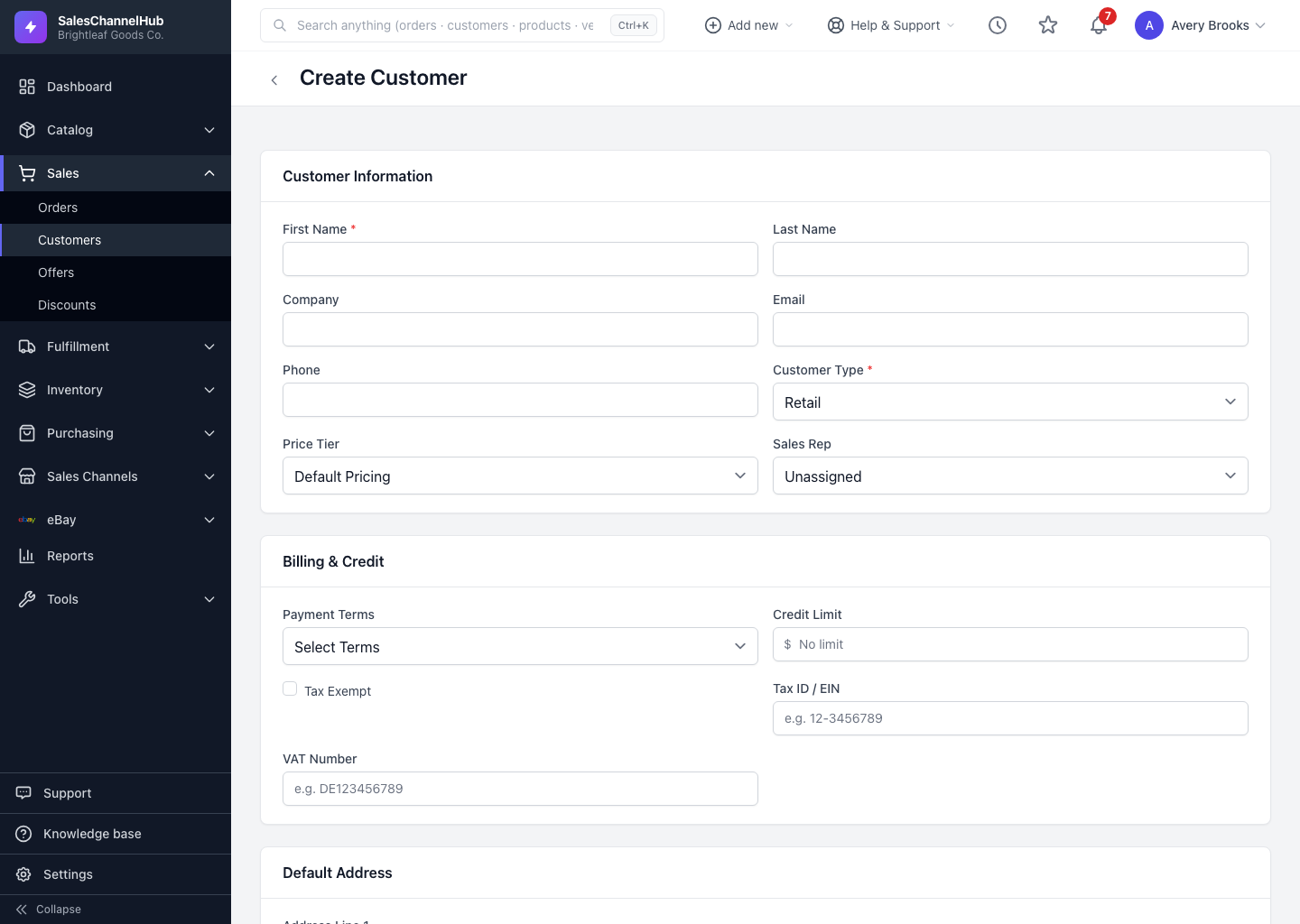
How do I add one?
- From the customer list, click Add Customer.
- Under Customer Information, enter the First Name (required), plus last name, company, email and phone.
- Pick a Customer Type (Retail, Wholesale or Distributor) and optionally a Price Tier and Sales Rep.
- Under Billing & Credit, set Payment Terms, a Credit Limit, and tax details if the account is exempt.
- Fill in the Default Address and any Internal Notes if you have them.
- Click Create Customer. The record saves with an auto-generated customer number and opens straight to its 360 view.
Does the address save automatically?
If you complete Address Line 1, City and Postal Code in the Default Address section, that address is stored as the customer's default billing and shipping address. Leave those blank and no address is created.
Tip. Pair the customer type with a matching price tier as you create the record, so Wholesale accounts sit on a wholesale tier and the discount is right from order one.
Common questions
Which fields are required to create a customer?
Only First Name and Customer Type. Type defaults to Retail. Everything else, including email and address, is optional.
How is the customer number assigned?
Automatically when you save. You don't type it in; the system generates the next number in sequence.
Can I set a price tier while creating the customer?
Yes. Pick it from the Price Tier dropdown in the Customer Information section. Leave it on Default Pricing if the customer pays list price.