Assign a customer to a price tier
Edit the customer, open the Price Tier dropdown in Customer Information, pick the tier and save. No tier means list pricing.
Once your tiers exist, assign each customer to one so their discount is built into every order. A customer with no tier is quoted at default list pricing.
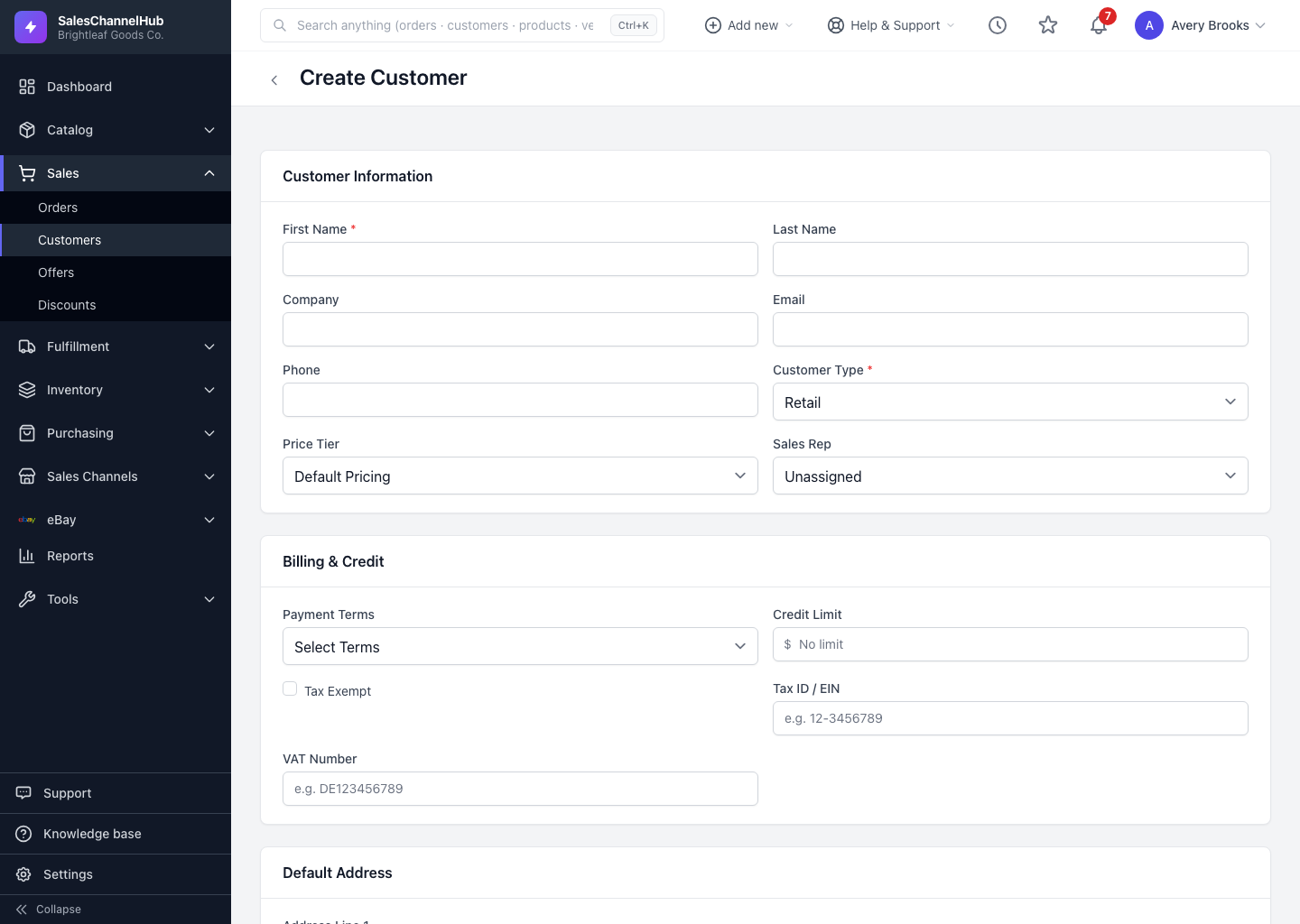
How do I assign a tier?
- Open the customer and click Edit, or set this while creating a new one.
- In Customer Information, open the Price Tier dropdown.
- Pick the tier. Its discount percentage shows beside the name, so you can confirm you've got the right one.
- Leave it on Default Pricing if the customer pays list price.
- Click Update Customer (or Create Customer) to save.
Where can I confirm the tier stuck?
The assigned tier shows in the Details panel on the 360 view and in the customer list, so you can check it at a glance.
Tip. Need to move many customers to a tier at once? It's faster to export, set the Price Tier column in your spreadsheet, and re-import than to edit each record.
Was this article helpful?