Bulk activate or deactivate vendors
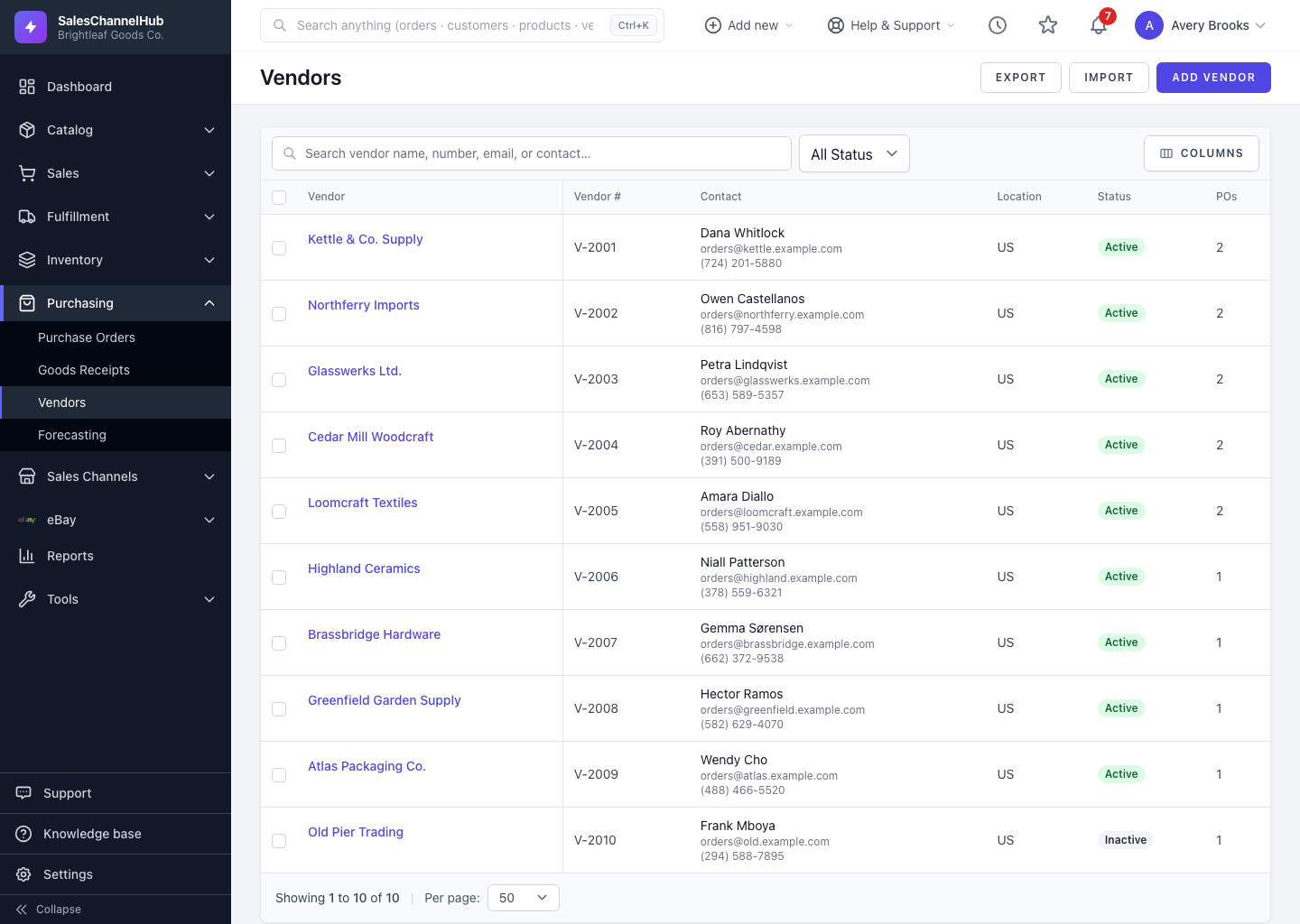
Tick vendors on the list, then use the bulk-actions bar to Activate or Deactivate several suppliers at once.
Deactivating a vendor keeps its history but signals you're no longer buying from it. To flip several at once, tick them on the list and use the bulk-actions bar.
How do I change status for many vendors?
- Go to Purchasing → Vendors.
- Tick the checkbox on each vendor, or use the header checkbox to select the page.
- In the bulk-actions bar, click Activate or Deactivate.
- Confirm the prompt, which tells you how many vendors will change.
What does this affect?
- Deactivated vendors stay searchable. Filter Status to Inactive to find them.
- It changes only the active flag. No vendor data is deleted.
- Deleting vendors is a separate bulk action, and any vendor that already has purchase orders is skipped.
Tip. Deactivate rather than delete when a supplier might come back. You keep the spend history and lead-time record intact.
Was this article helpful?