Export brands to CSV
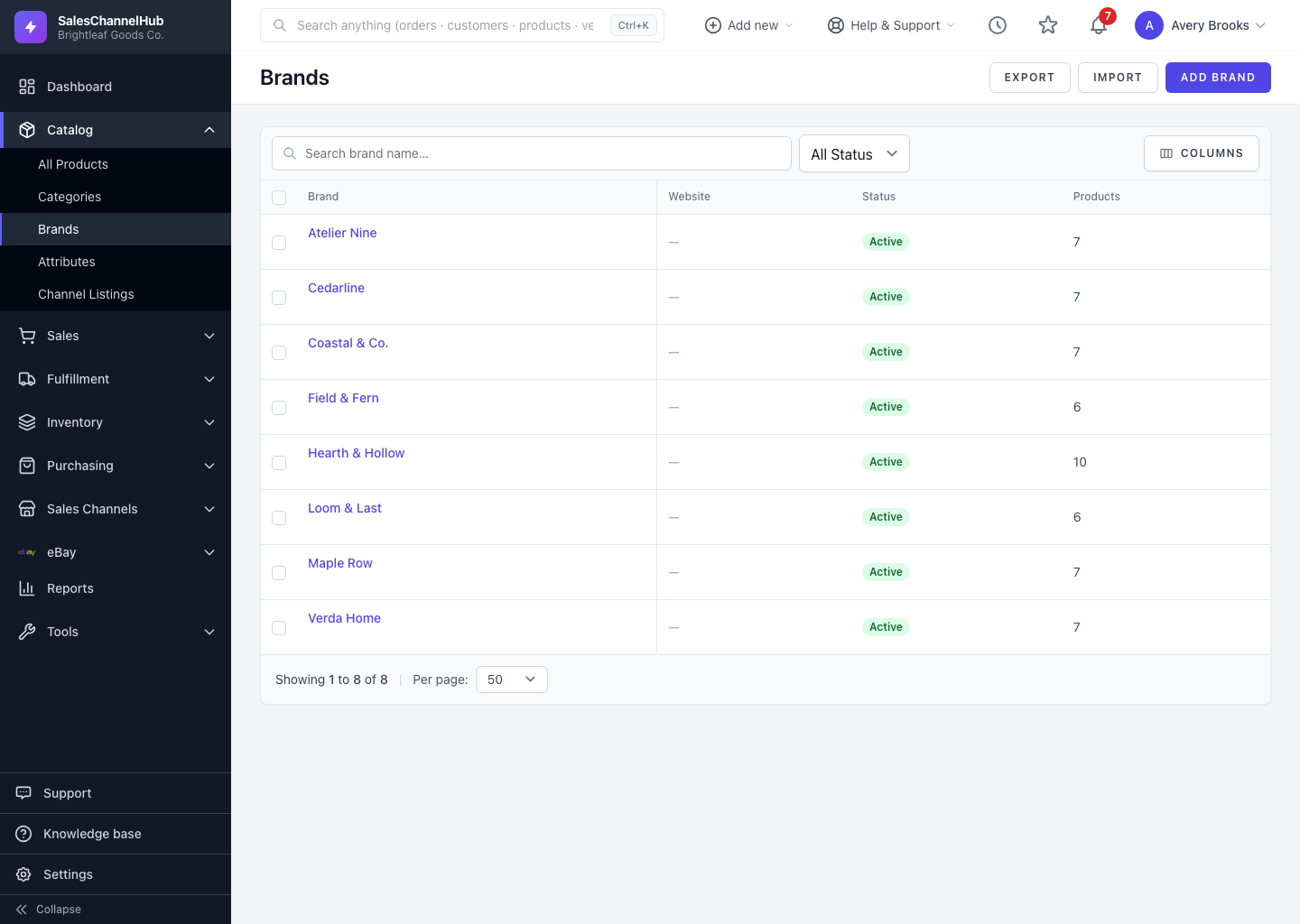
Click Export on the Brands list to download your brands as a spreadsheet. Any active search or status filter carries into the file.
To get a spreadsheet of your brands, click Export on the Brands list. Use it for a backup or to bulk-edit in a spreadsheet and re-import.
How do I export brands?
- Go to Catalog > Brands.
- Click Export in the page header.
- Your browser downloads a CSV with one row per brand. Any search or status filter you've applied carries into the export.
What columns are in the file?
- One column each for Name, Slug, Description, Website and Active.
- These are the same columns the Import page accepts, so an export doubles as a ready-made template for round-trip editing.
Tip. Apply a status filter before exporting if you only need a subset, say just your active brands, and the download matches what's on screen.
Was this article helpful?